Start here
How to track your spending
Gather a month or two of bank and card statements, give every purchase a category, and add up each one, in a notebook, a spreadsheet or Simple Balance.
Most people have a rough idea of what they spend each month. Tracking your spending means checking that guess against what really happened. It’s the first step for almost anything else you want to do with your money, from making a budget to saving for a trip. To track your spending, gather a month or two of bank and card statements, give every purchase a category, and add up what each category cost.
Why it matters
It’s hard to change something you can’t see. “Spend less” is a wish. “Spend $150 less on eating out” is a plan, and you can only make it once you know eating out cost you $450 last month.
Small costs are the easiest to miss. Nobody forgets the rent, but coffee, delivery fees and the app you tried for free slip by and add up. In a 2022 survey by C+R Research, people first guessed they spent $86 a month on subscriptions. When they were asked about each kind one at a time, the total came to $219.
Real numbers also make a better budget. Say you set $300 for groceries because it sounded about right, but you really spend $500. That budget is broken by the second week, and it’s easy to give up on it. A budget built on two months of real spending starts out believable.
Tracking also tells you whether you’re getting ahead. Take what came in, subtract what went out, and you’ll know if your savings grew or shrank. You need both numbers to know that.
How to do it
You don’t need special software. A notebook or a spreadsheet is fine, and the Consumer Financial Protection Bureau has a free spending tracker you can print. What matters most is doing the same few steps each time.
1. Gather a month or two of statements
Start with your checking account and each credit card. Most banks let you download statements from their website, often as a spreadsheet file. One full month is enough to start. Two or three is better, because a single month usually has something odd in it, like a birthday or a car repair.
2. Pick a short list of categories
A category is a label for what the money was for, like groceries or rent. Start with eight or ten:
- Housing (rent or mortgage)
- Utilities (power, water, phone, internet)
- Groceries
- Eating out
- Transportation (gas, bus fare, car payment)
- Health
- Shopping
- Subscriptions
- Everything else
You can split one up later if it’s hiding something. Start with too many and every receipt turns into a puzzle. A list of budget categories has more ideas.
3. Give every purchase a category
Go down each statement and label every purchase. Two kinds of entries are easy to get wrong, so keep an eye out for them.
The first is money moving between your own accounts. Paying your credit card from checking doesn’t change what you spent, because the spending happened when you used the card. If you count the card payment as well, you’ve counted those groceries twice. Moving money into savings works the same way.
The second is refunds. If you return $40 of clothes, you spent $40 less on clothes. That money is coming back, not money you earned, so take it off the clothes category.
4. Add it up
Total each category for the month, then total what came in. Now you can see where most of your money went, which numbers surprised you, and whether you spent more than you earned.
5. Keep it going
Doing this once gives you a snapshot. Doing it every week, for ten or fifteen minutes, gives you a habit you can use. Weekly is easier than monthly because you can still remember what most of the charges were.
How to do it in Simple Balance
Simple Balance is an expense tracker: it keeps your accounts, purchases and categories in one place and does the adding up for you. It doesn’t pull anything from your bank today. You download the file your bank gives you and bring it in, or type in a purchase yourself.
Set up your accounts
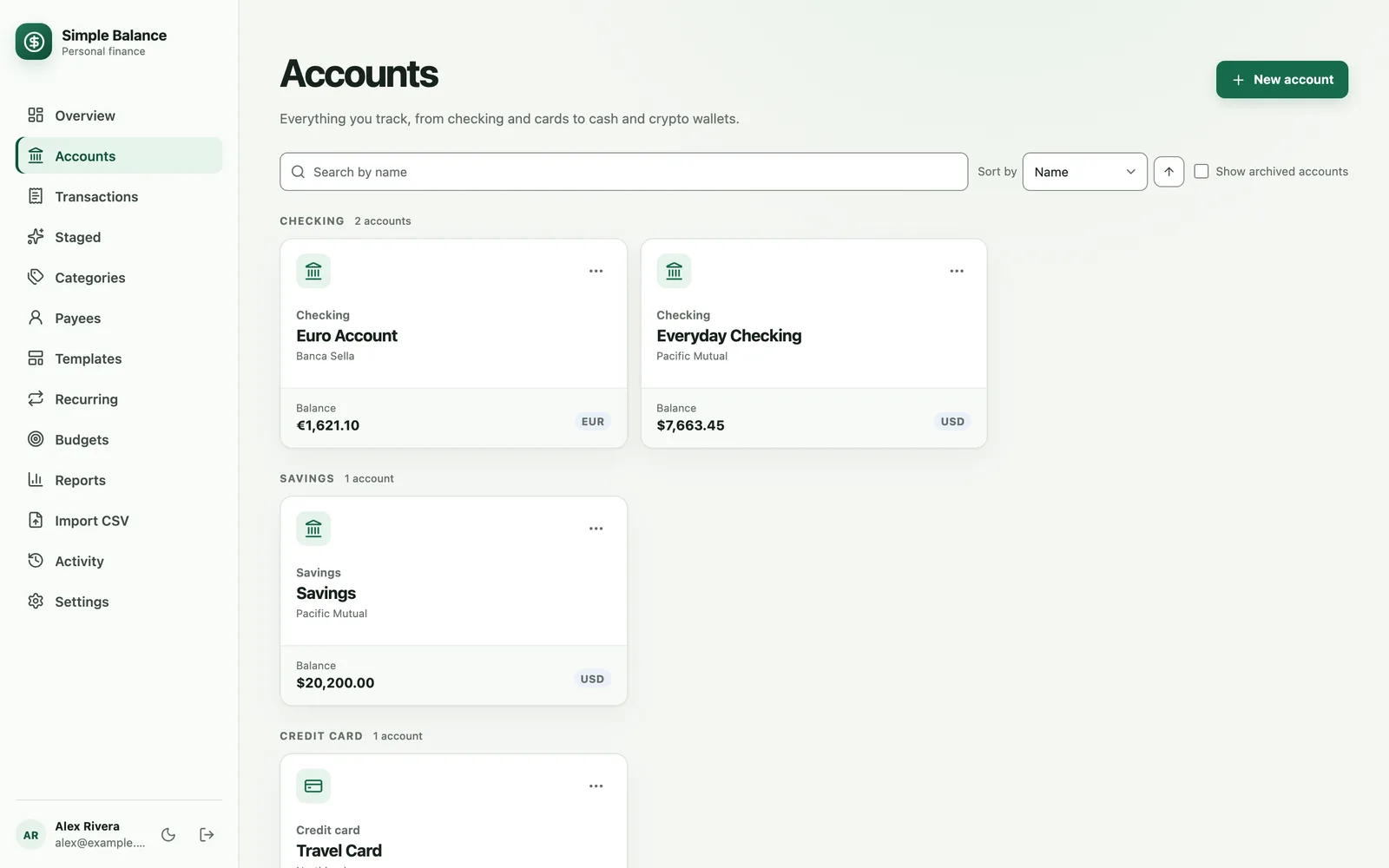
Open Accounts and press New account. Add your checking account and each credit card, with what each one holds today as the opening balance. For a credit card, type what you owe as a plain number and leave Starting balance type on Amount owed.
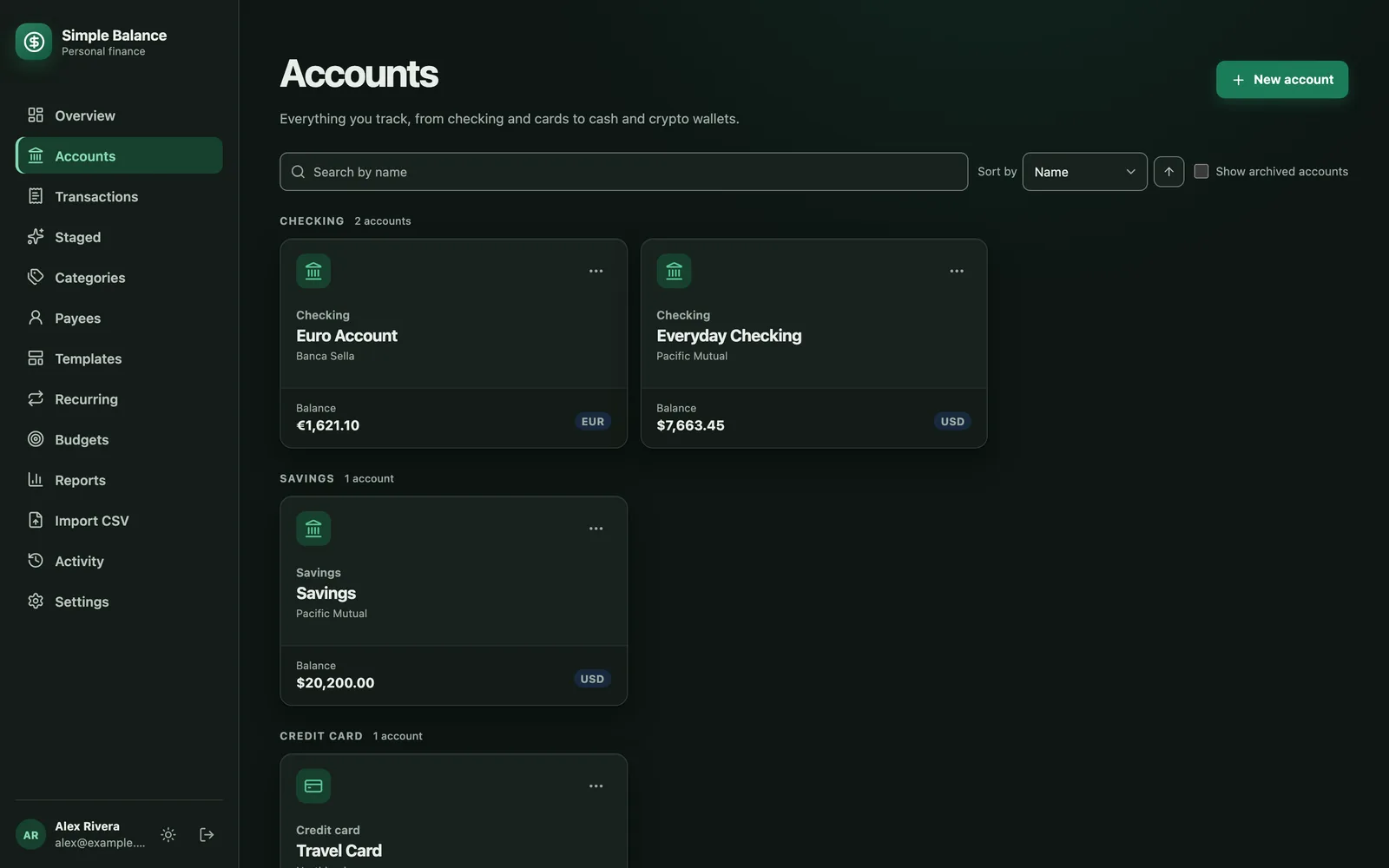
The money in this picture is made up. It’s the real product, filled with example spending.
Bring in a statement
- Download your statement from your bank’s website as a CSV file, a simple spreadsheet file that many banks offer.
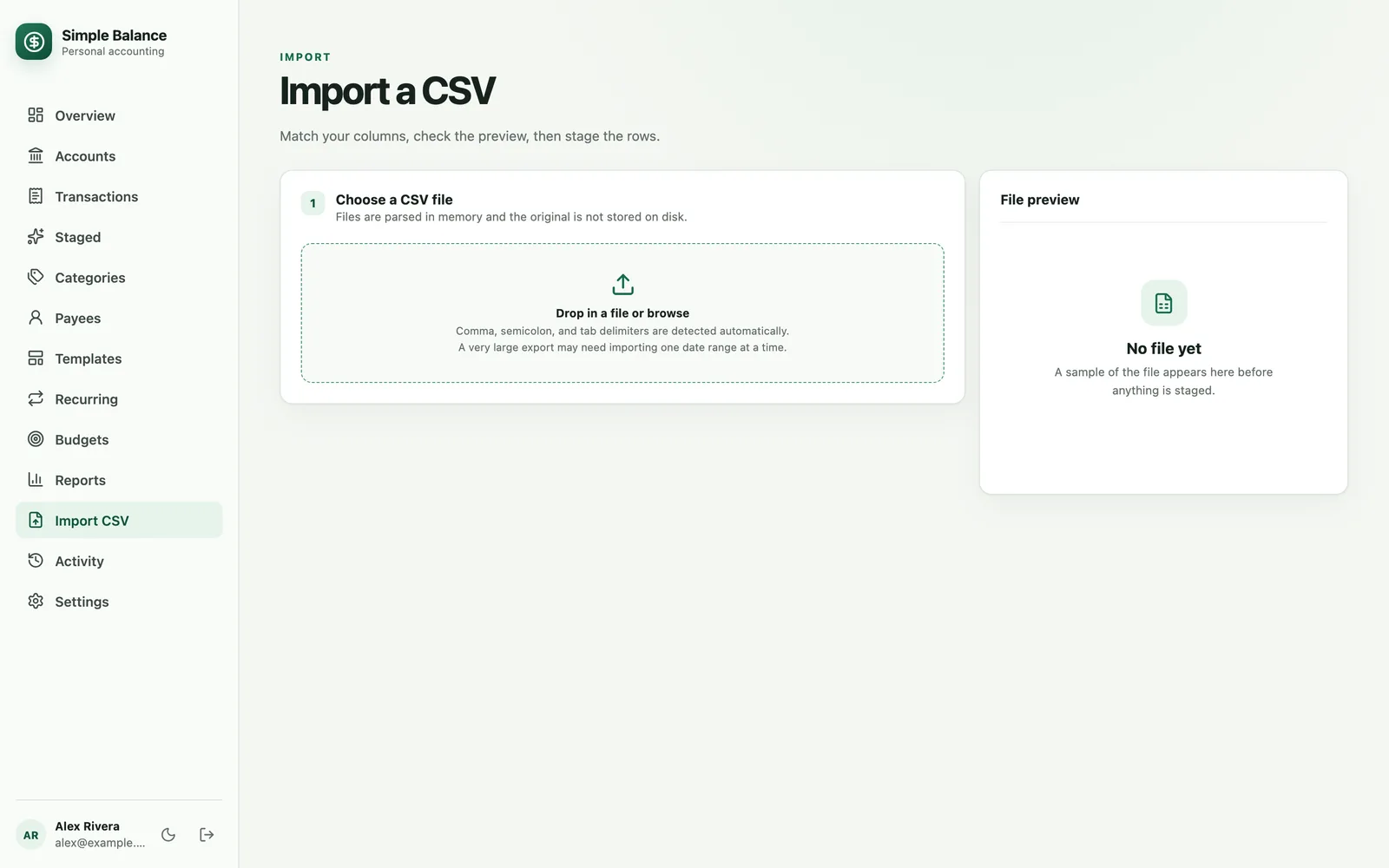
- Open Import CSV, choose the file, and pick the account it belongs to.
- Check which column is the date, which is the payee and which is the amount. Check the date order too. Many US banks put the month first, so 03/04/2026 means March 4.
- Press Dry run to see how each row will be read. Nothing is saved yet.
- Press Stage all rows.
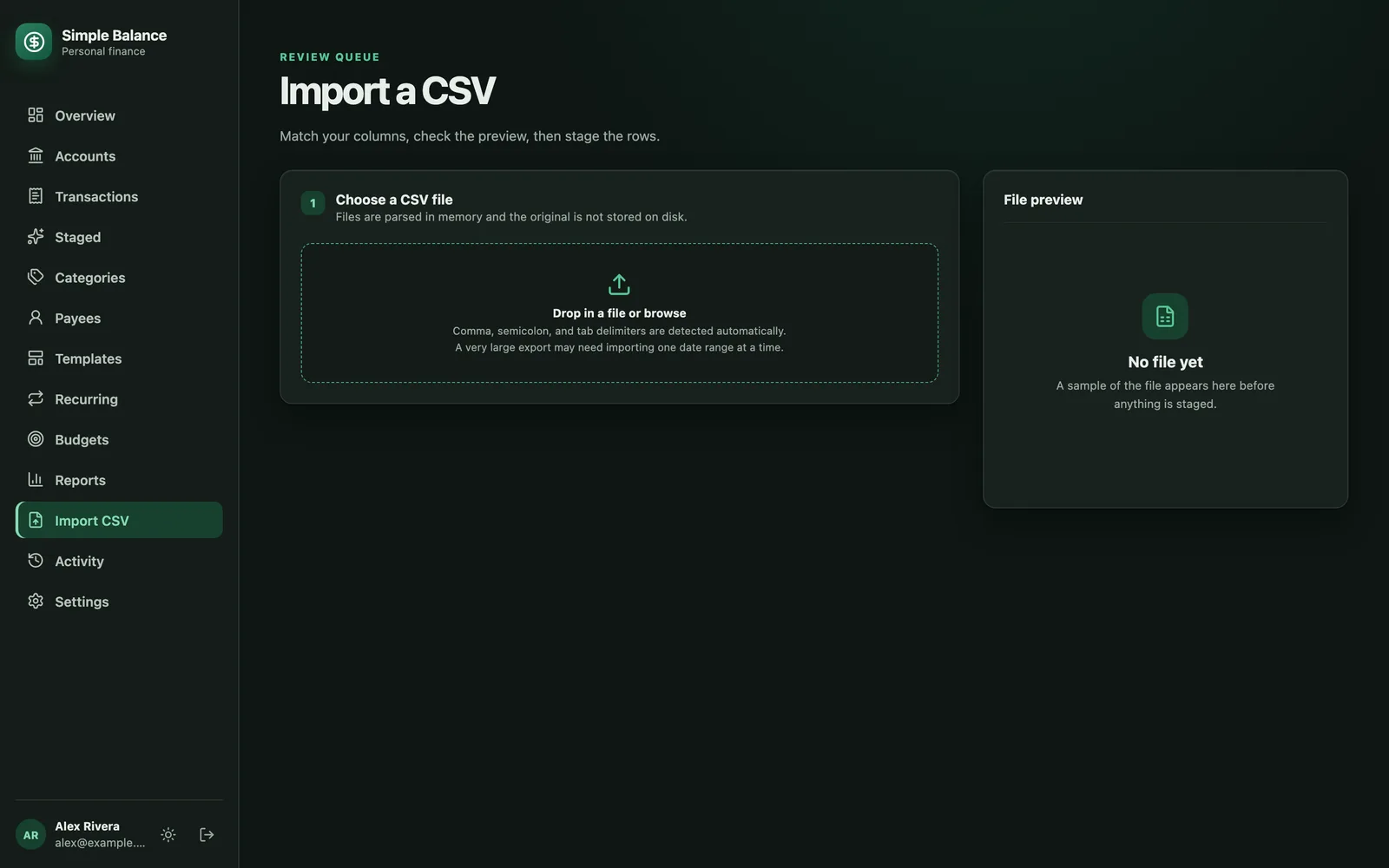
The money in this picture is made up. It’s the real product, filled with example spending.
The rows go to Staged, a waiting area where nothing counts toward your balances yet. If something looks wrong, you can fix it or delete it there, and no harm is done. Importing a statement has more detail.
Sort the rows as you check them
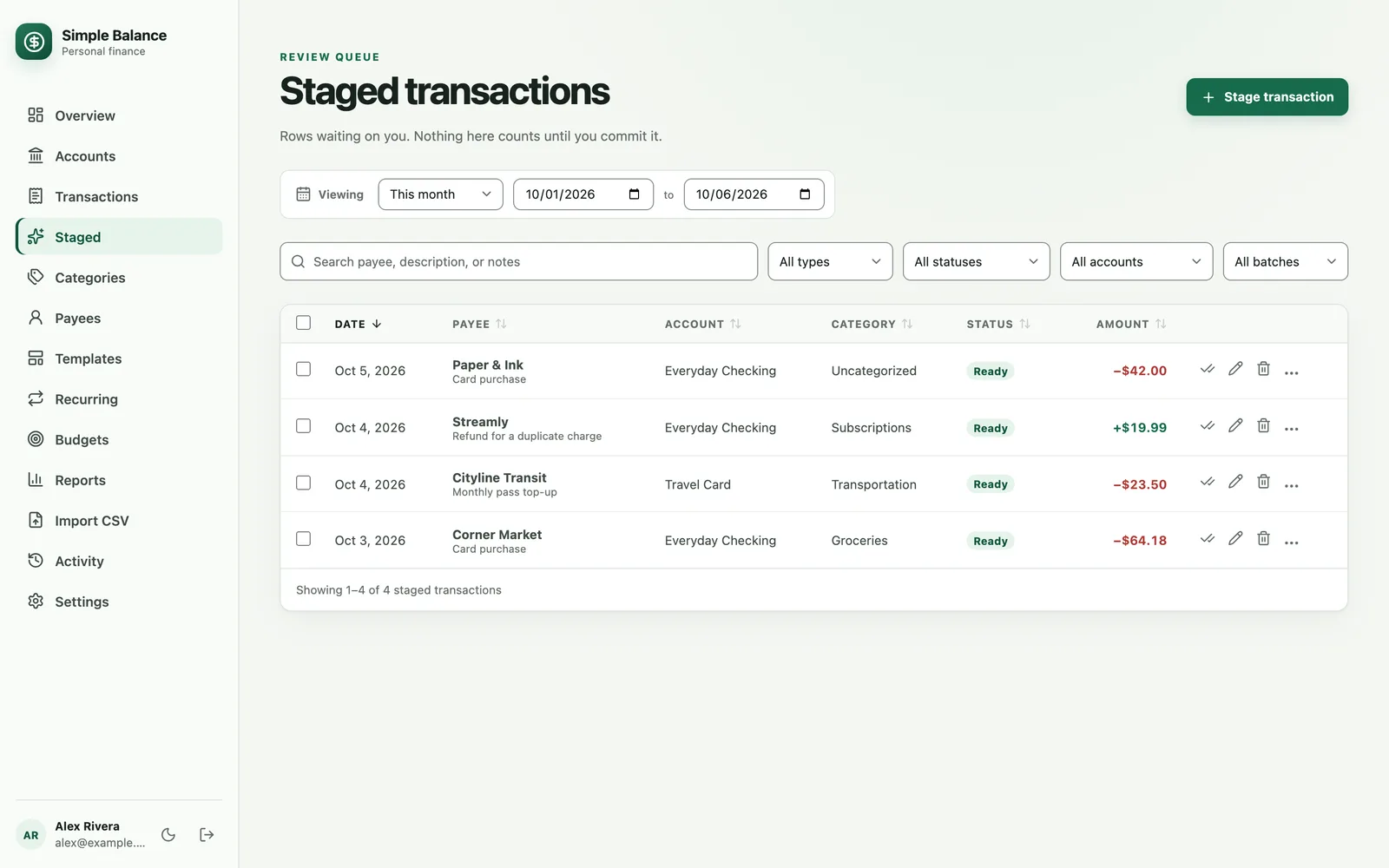
On Staged, click a row’s category to set it. If you type a name that doesn’t exist yet, Simple Balance creates it. Rows that look like something you already have get flagged as possible duplicates, so bringing in the same statement twice won’t double your spending. When everything looks right, press Commit selected.
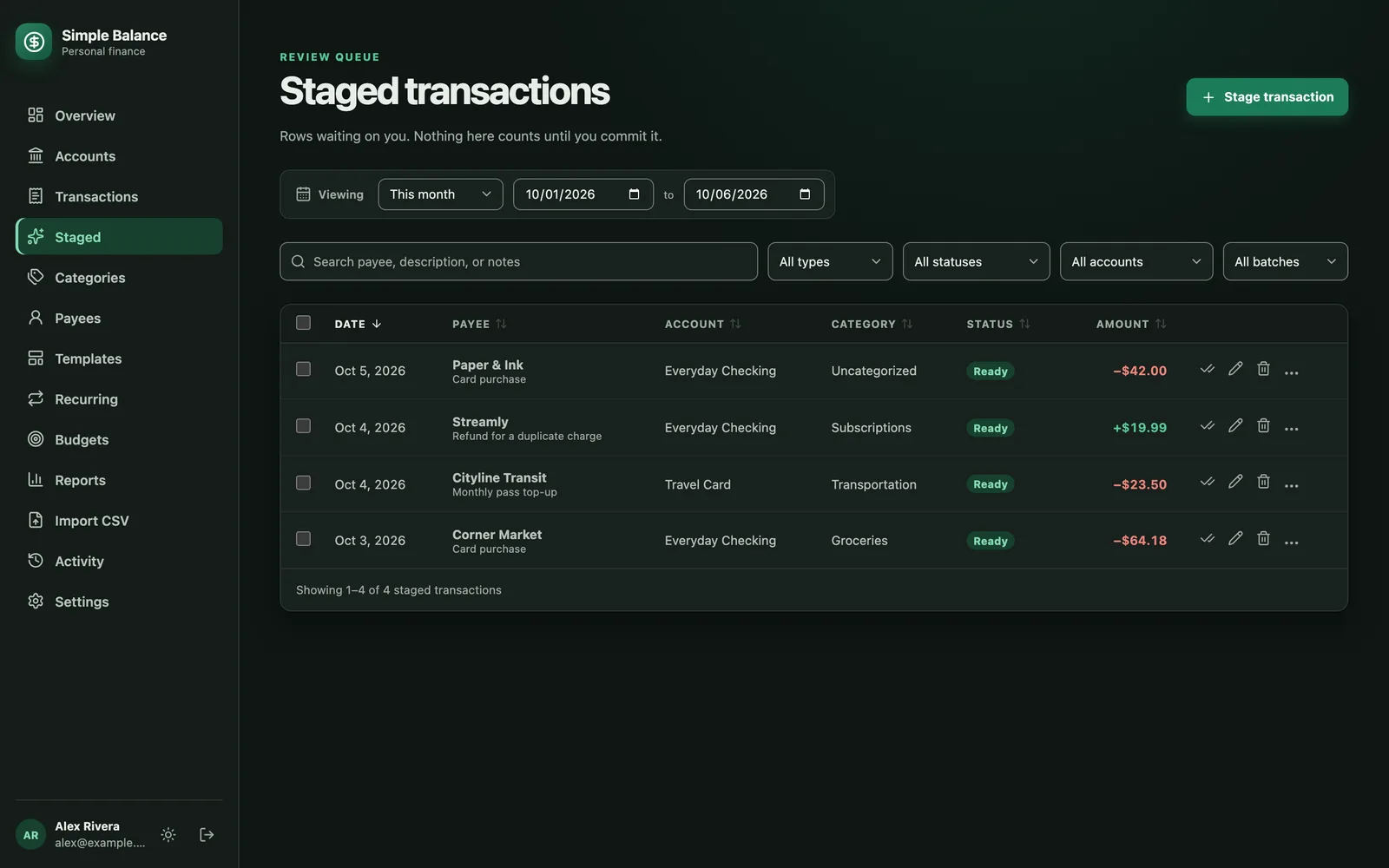
The money in this picture is made up. It’s the real product, filled with example spending.
Card payments and refunds
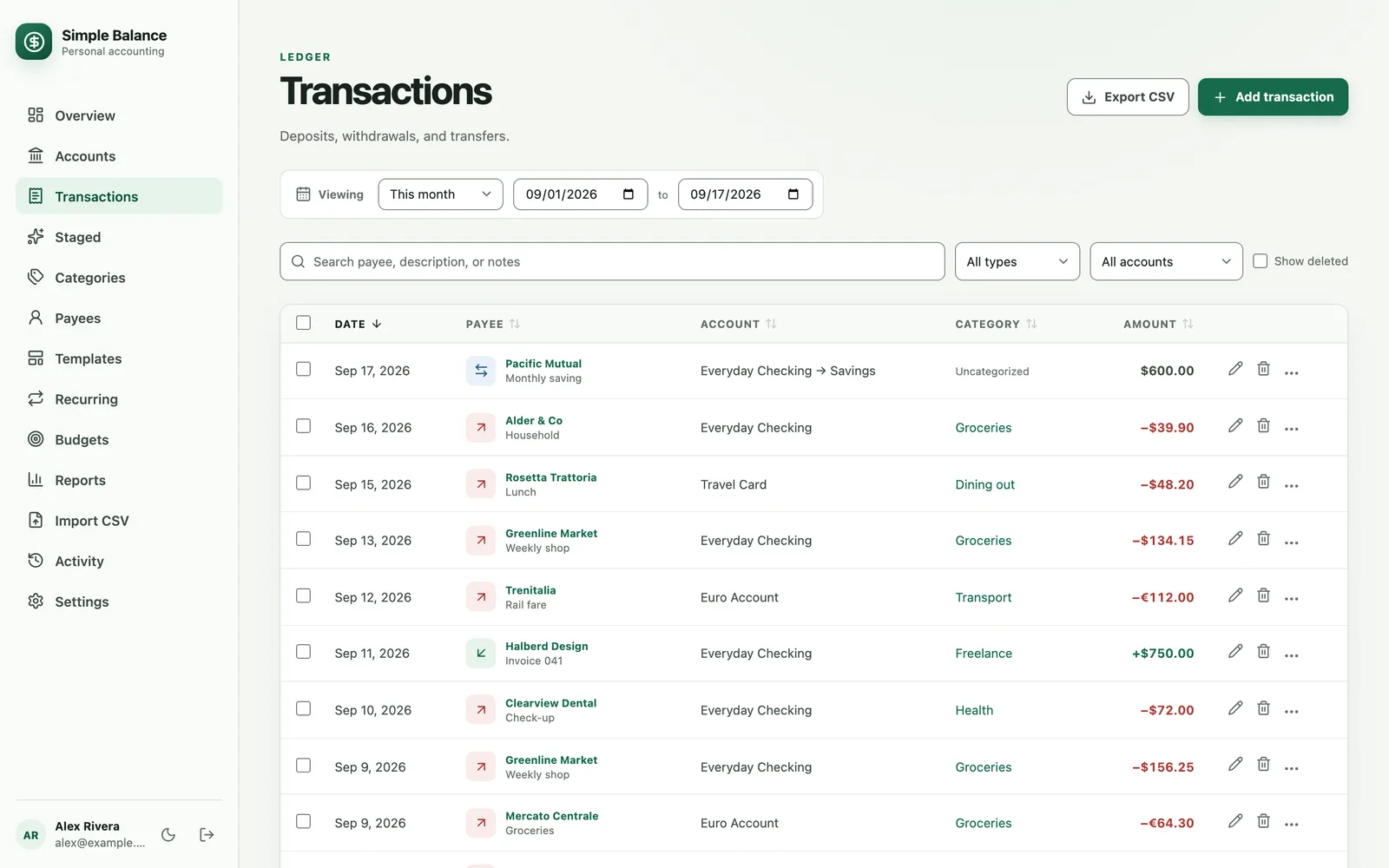
When you pay your card from checking, record it as a Transfer, not a withdrawal. A transfer moves money between two of your own accounts, so it never counts as spending. On Transactions, a transfer shows both accounts and no category, like the $600 moved into savings below.
For a refund, choose Deposit and give it the same category as the purchase. That category’s spending goes down by the amount of the refund. If the category is new, the form asks what kind of money it is. Pick A refund of money you spent.
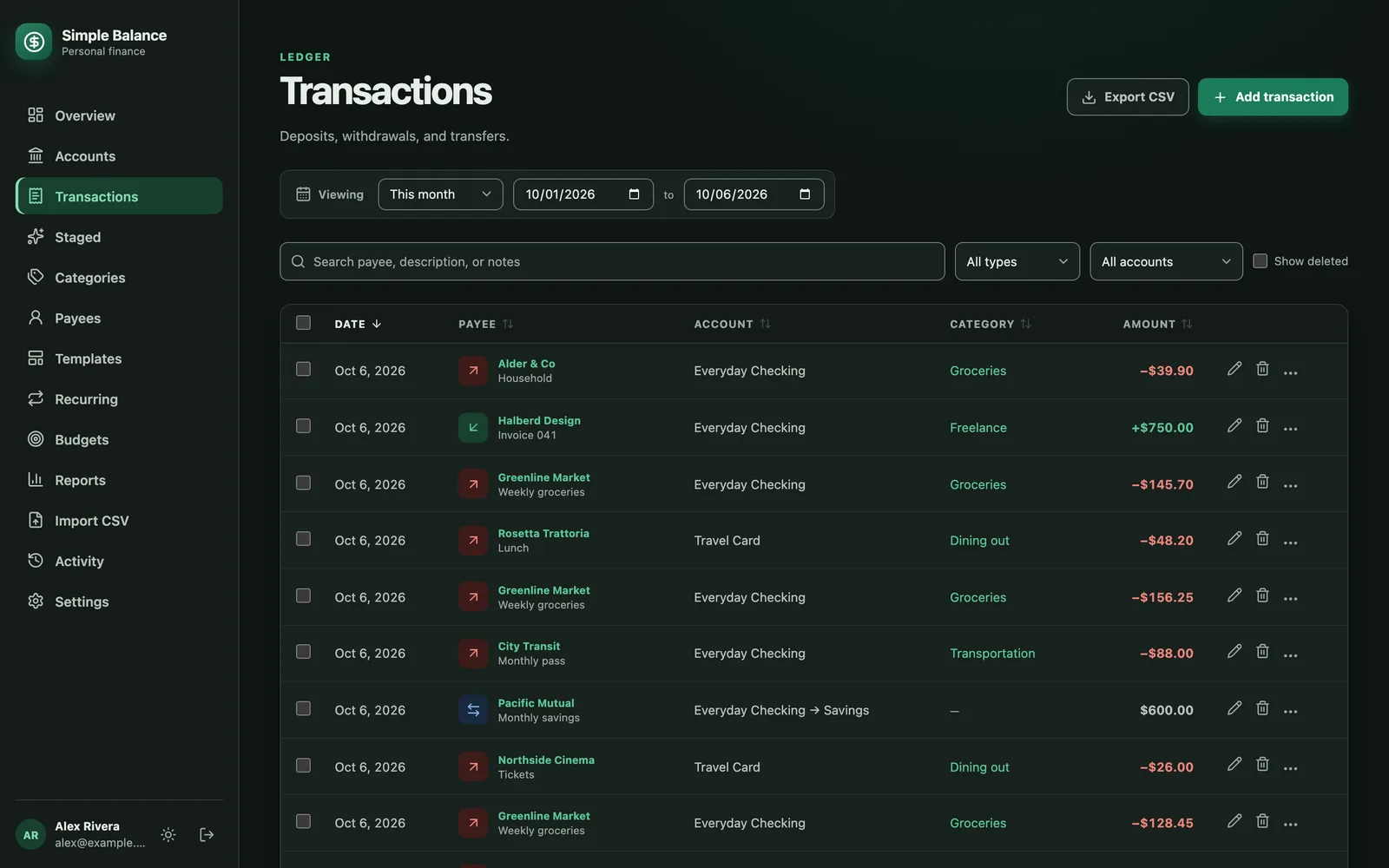
The money in this picture is made up. It’s the real product, filled with example spending.
See where it went
Overview shows your spending by category for any dates you choose, biggest first. Transfers are left out, so a card payment never shows up as spending.
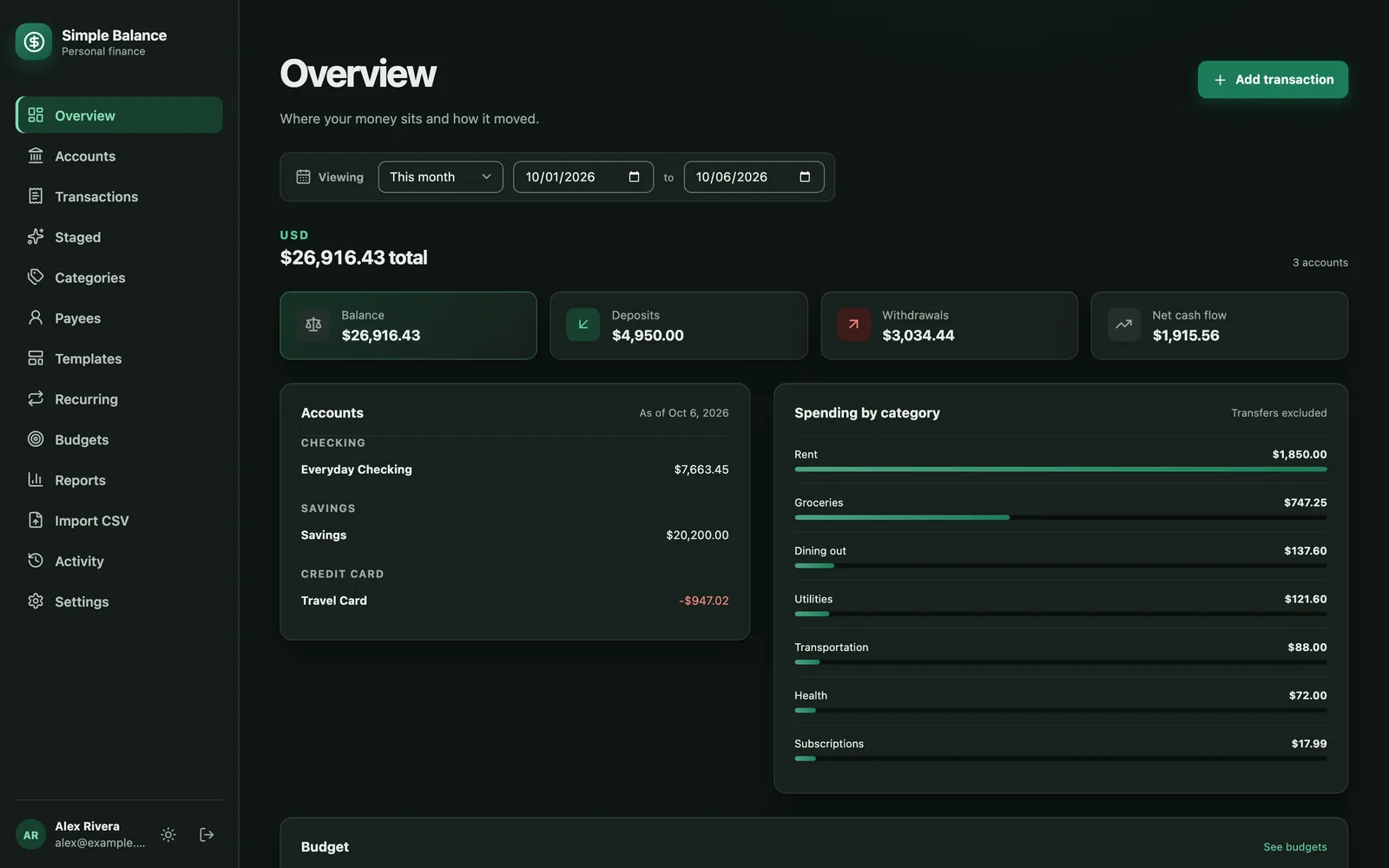
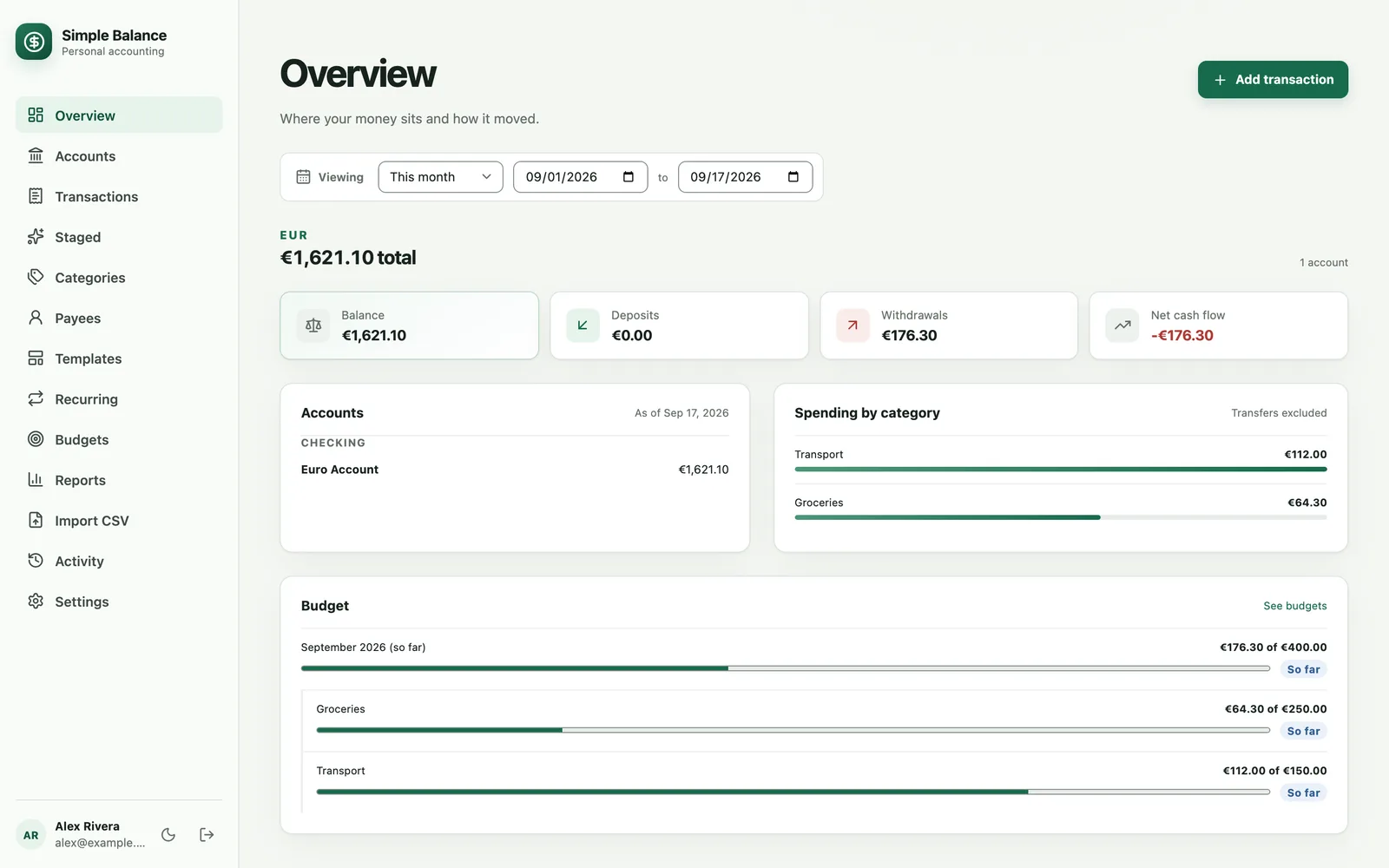
The money in this picture is made up. It’s the real product, filled with example spending.
Reports goes into more detail. The Categories report breaks spending down by category, and Income and expenses compares what came in with what went out. If one big category like rent makes the rest hard to see on the chart, open its row’s menu and choose Exclude from this view. That only changes what you’re looking at, not your records.
If you find the same store filed under the wrong category for months, go to Transactions, check those rows, and change their category all at once.
Once you have a month or two of real numbers, you’re ready to make your first budget.
Sources
- Consumer Financial Protection Bureau. Your Money, Your Goals toolkit. Updated April 2026.
- Consumer Financial Protection Bureau. Spending tracker, from the Your Money, Your Goals toolkit. 2018.
- C+R Research. Subscription service statistics and costs. Survey of 1,000 U.S. consumers, April and May 2022.