The overview
What the Overview shows for the dates you pick, from your balance and money in and out to each account, top spending and your budget.
Overview is the first screen you see when you sign in. It shows where your money is and how it moved over the dates you pick: your total balance, what came in and went out, each account, where you spent the most, and how your budget is going.
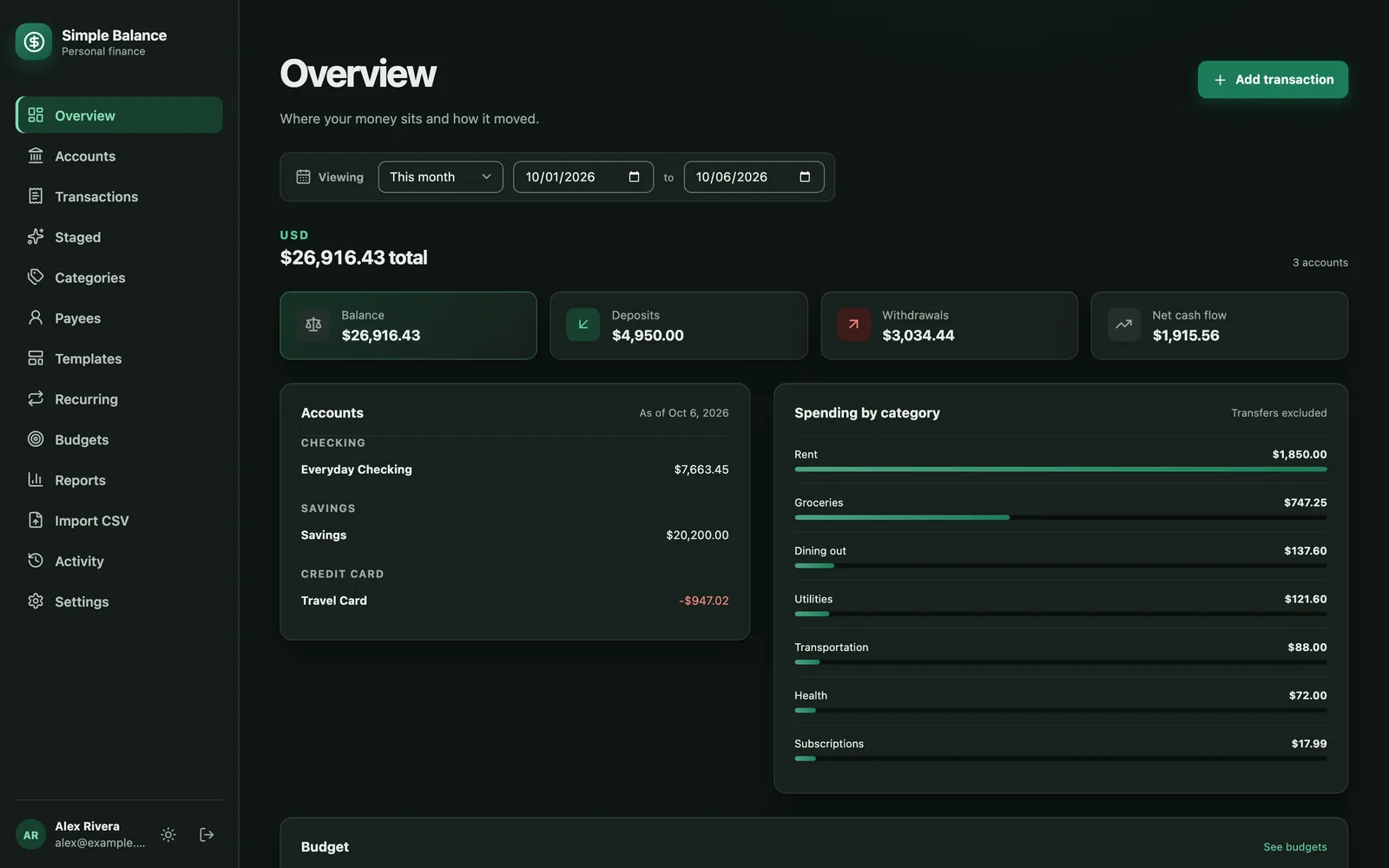
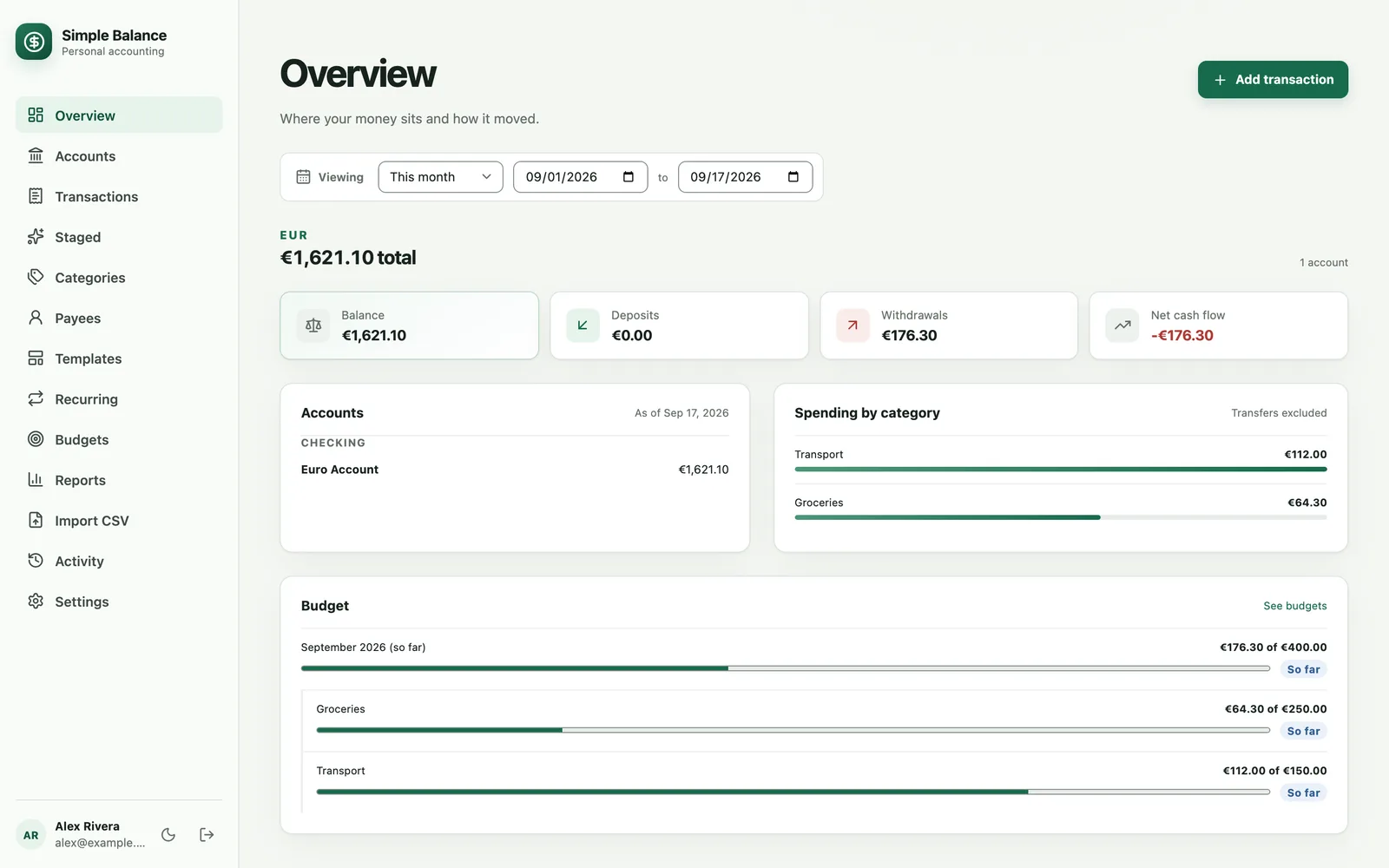
The money in this picture is made up. It’s the real product, filled with example spending.
Pick the dates
The Viewing bar at the top sets the dates, and it starts on This month. Finding your way around lists every choice.
Every figure on the screen stops at today, in your timezone, even if the end date you pick is later. Money dated in the future hasn’t moved yet.
One section for each currency
If all your accounts use one currency, the screen has one section. If they use more than one, each currency gets a section of its own with its own figures. Your default currency comes first and the rest follow in alphabetical order. Nothing is converted, and nothing is added up across currencies.
Each section’s heading shows the currency, its total, and how many accounts are in it. More than one currency explains why the sections stay apart, and Theme, timezone and currency shows how to change which one comes first.
The four numbers at the top
| Number | What it means |
|---|---|
| Balance | What your accounts in this currency add up to on the last day of your dates, or today if that’s sooner. A credit card or loan you owe on counts as a minus. |
| Deposits | Money that came into your accounts from outside during your dates, like a paycheck. |
| Withdrawals | Money you spent during your dates, less any refunds. |
| Net cash flow | Deposits minus withdrawals. Below zero means more went out than came in. |
A few things don’t add to Deposits or Withdrawals:
- Transfers between your own accounts. Paying your credit card from checking isn’t spending. The purchases on the card were.
- An account’s opening balance. It’s what the account held when you started tracking it, not money that arrived.
- A refund. A deposit you filed under a spending category lowers Withdrawals instead of adding to Deposits. How deposits, withdrawals and transfers work explains why.
- Paying back money you earned. A withdrawal you filed under an income category lowers Deposits instead of adding to Withdrawals.
Accounts
The Accounts panel lists every account in this currency with its balance, grouped by type: checking, savings, credit card and so on. The date beside As of is the day those balances are for, which is the end of your dates or today, whichever comes first. A card or loan you owe money on shows as a negative number.
Click an account to open its own page for the same dates. Accounts covers what’s there.
Archived accounts aren’t listed, and money that went through them isn’t counted in Deposits, Withdrawals or Spending by category.
Spending by category
Spending by category shows where your spending went during your dates: the seven categories you spent the most in, largest first, each with a bar so you can compare them. Transfers are left out, as the panel says.
- Uncategorized is added at the bottom whenever some spending has no category, however small it is, so you can see there’s filing left to do.
- A refund lowers the category it’s filed under.
- A transaction split across categories counts each part under its own category.
Click a category to open its page for the same dates, with every transaction filed under it. Uncategorized isn’t a category, so it isn’t a link. If you spent nothing during your dates, the panel says No spending in this range.
The Track your spending guide covers what to look for here.
Budget
The Budget panel shows how your monthly budgets are going. See budgets opens the Budgets screen on the same dates.
Each month in your dates that has a budget gets its own line: the month, what you spent out of what you had to spend, a bar, and a word for how it’s going. What you had to spend is the budget plus anything carried over from earlier months. A month that isn’t over yet says (so far) after its name.
Only the last month in your dates is broken down, into every group and category you’ve budgeted. A group is marked Adds up when its budget is the total of its categories’ budgets, or Own budget when it has an amount of its own. A group covers the same spending as the categories in it, so don’t add a group’s figures to its categories’.
| Word | What it means |
|---|---|
| So far | The month isn’t over, and you haven’t gone over or spent it all. |
| Over | You spent more than you had. |
| All spent | You spent exactly what you had. |
| Nearly there | A finished month where you spent 80% or more of what you had. |
| Within budget | A finished month where you spent less than 80% of what you had. |
What the Budget panel leaves out
- Budgets by the week, quarter or year. The panel only reads monthly budgets. The others show on Budgets when you choose that length under Budgeting by.
- Months outside your dates. With All time picked, the panel shows only this month.
When nothing in your dates has a monthly budget, the panel says No budget in this range. Budgets covers setting one.
Why it can disagree with Spending by category
The two panels can show different amounts for the same category, for two reasons:
- The Budget panel counts whole months. Spending by category counts only your dates. With Last 30 days picked, Spending by category covers those 30 days, while the Budget panel shows all of last month and this month so far.
- The Budget panel counts spending through archived accounts, the way the Budgets screen does unless you clear Count spending through archived accounts there. Spending by category leaves archived accounts out.
Add a transaction from here
Press Add transaction at the top to open Add a transaction, the same form as on Transactions. You can commit it now or stage it for review. Transactions walks through the form.
The button is grayed out, with “Create an account first.” beside it, until you have an account.
When it’s empty
- Create your first account means you have no accounts yet. Press Create an account to go to Accounts and make one. Getting started walks through it.
- No spending in this range usually means the dates are too narrow. Try All time, or check Staged for transactions you haven’t committed yet, since those don’t count anywhere.
- No budget in this range means no month in your dates has a monthly budget. Budgets covers setting one.