Accounts
Add checking, savings, credit card, loan, cash and crypto accounts, read each one’s balances and register, and archive or delete old ones.
An account in Simple Balance is anywhere your money sits or anything you owe: a checking or savings account, a credit card, a loan, cash, an investment or a crypto wallet. Each one keeps its own balance, and every transaction you record moves money into or out of at least one of them.
You manage them under Accounts in the sidebar. Each account also has its own page, with its balances, its transactions and a register for tracking down a balance that doesn’t match your bank.
Add an account
- Open Accounts and press New account.
- Fill in the form, Create an account. Only the name, type, currency, opening date and opening balance are required.
- Press Create account.
| Field | What to put in it |
|---|---|
| Account name | What you call it, up to 120 characters. Two accounts can’t share a name, and capital letters and extra spaces don’t count as a difference, so “Checking” and “checking” are the same name. |
| Account type | One of nine types, listed below. |
| Currency or crypto asset | Starts on your default currency. It’s fixed once the account is in use. More than one currency covers the choices. |
| Opening date | The day you start tracking this account from. It starts on today. |
| Starting balance type | Only for a credit card, a loan or another liability: Amount owed or Credit balance. |
| Opening balance, or Starting amount | What the account held on the opening date. The label shows the currency, like Opening balance (USD). A card or loan asks for a Starting amount instead, as a plain positive number. An overdrawn checking account can start below zero, like -25. |
| Institution | Optional, up to 160 characters. The bank or card issuer, as a label for you. Nothing is worked out from it. |
| Notes | Optional, up to 2,000 characters. |
| The budget is about the money in this account | On by default, credit cards included. Turn it off for an account your budget shouldn’t see, such as a retirement account. It changes no balance and no report, only how much your budget has left to assign. |
The nine account types
| Type | What it’s for |
|---|---|
| Checking | An everyday bank account. |
| Savings | A savings account. |
| Credit card | A card you owe money on. |
| Cash | Bills and coins in your wallet or a drawer. |
| Crypto wallet | A wallet or exchange account holding a crypto asset. |
| Loan | A car loan, a student loan, a mortgage or any other loan. |
| Investment | A brokerage or retirement account. |
| Other asset | Anything else you own and want to count. |
| Other liability | Anything else you owe, such as money you’ve borrowed from a friend. |
Credit card, Loan and Other liability are money you owe. The rest are money you have. The type also decides where an account shows up in the Cash flow report, which follows the money in your Checking, Savings and Cash accounts. You can change the type later from Edit.
Credit cards and loans
A card or a loan starts below zero, because it’s money you owe rather than
money you have. When you add one, leave Starting balance type on
Amount owed and type what you owe as a plain number, like 500. Choose
Credit balance instead if the card owes you money, for example after a
refund bigger than what you’d spent.
On Accounts, a card or loan at zero or below shows its balance as Amount owed, a positive number. If it goes above zero, it shows Credit balance instead. On the account’s own page, each balance says “Amount owed” or “Credit balance” in front of its description. The Overview and the register show the same balance as a negative number, the way it adds into your total.
Paying the card from checking is a Transfer from your checking account to the card, not a withdrawal, so it isn’t counted as spending twice. How deposits, withdrawals and transfers work explains why, and Budget with a credit card shows how a card fits into a budget.
Find an account
Accounts groups your accounts under a heading for each type, with a count beside it, in this order: Cash, Checking, Savings, Credit card, Loan, Investment, Crypto wallet, Other asset, Other liability. A type you have no accounts of is left out.
Each card shows the account’s type, name and institution, its balance as of today, and its currency. Click a card to open the account’s own page.
- Search accounts narrows the list to names containing what you type.
- Sort by orders the accounts inside each heading by Name, Currency, Balance or Status. The arrow button beside it reverses the order. Balance starts with the largest.
- Show archived accounts adds the accounts you’ve archived, which are hidden until you check it. They carry an Archived badge.
- An account marked Frozen is one the free plan has put out of use. See the free plan below.
Each card’s ⋯ menu has Edit, Archive (or Restore) and Delete if unused.
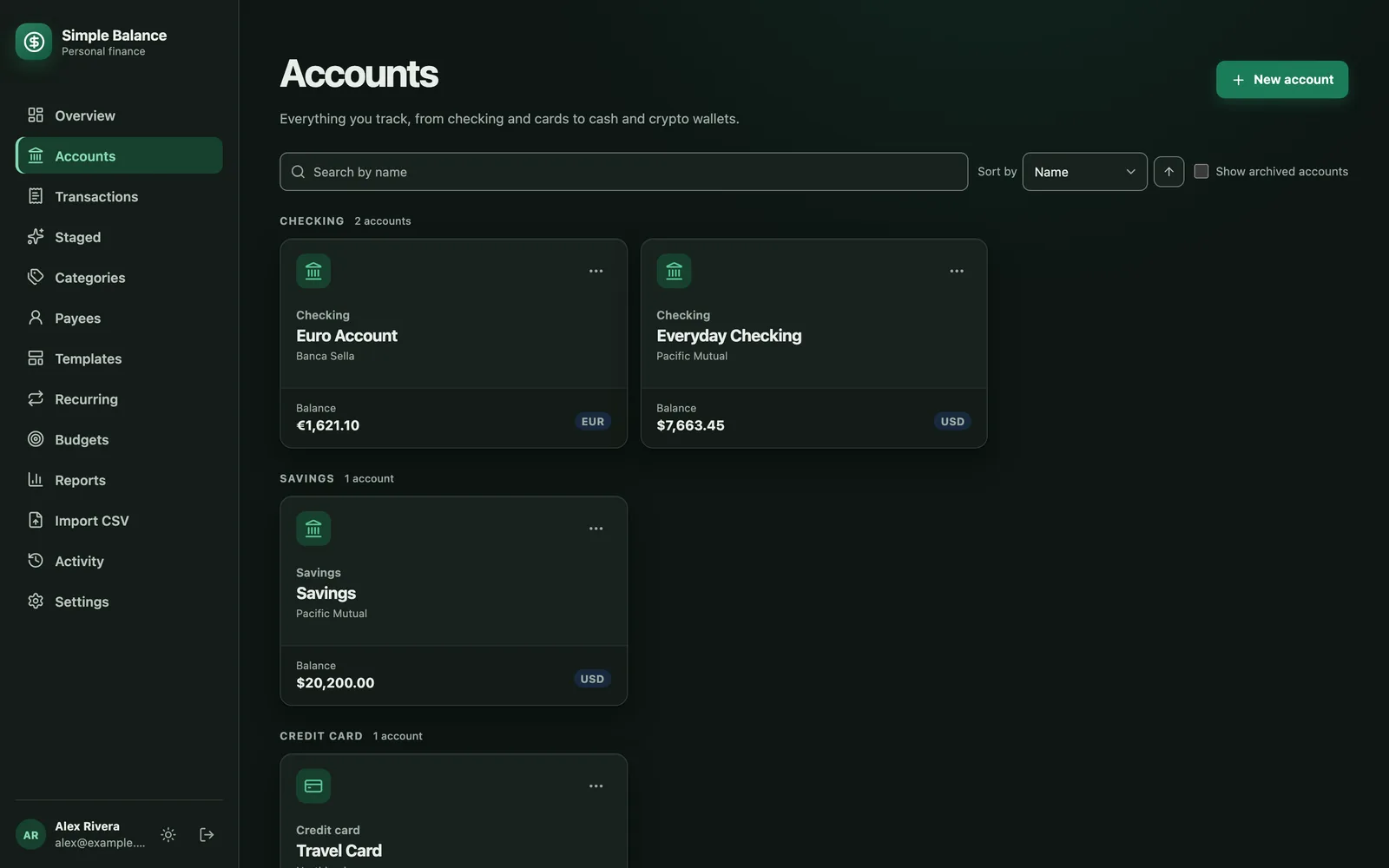
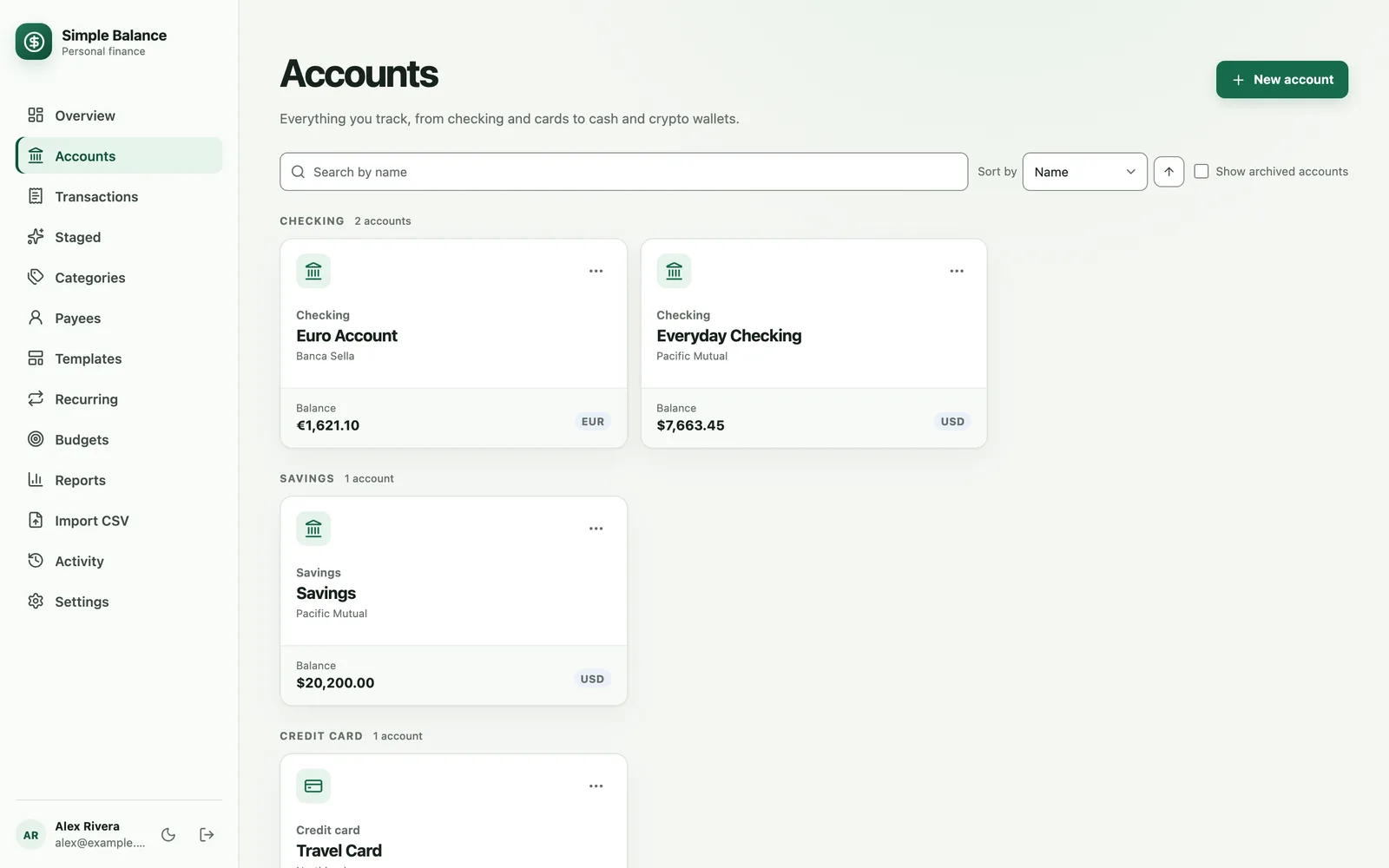
The money in this picture is made up. It’s the real product, filled with example spending.
An account’s page
Click an account on Accounts or Overview to open its page. The top shows its name, its institution, its currency and any Archived or Frozen badge. All accounts takes you back to the list.
Under the Viewing dates, four balances sum up the account. The dates start on This month unless you arrived with other dates already chosen.
| Balance | What it means |
|---|---|
| Beginning balance | What it held immediately before the first day of the dates you chose. |
| Ending balance | What it held at the end of the dates you chose. |
| Current balance | What it holds today. It shows today’s date. |
| Future balance | What it’ll hold once every transaction dated after today happens. |
Money dated after today only counts in Future balance, and in Ending balance when your dates run past today. On All time, Ending balance and Future balance are the same, and Beginning balance is zero because nothing comes before it.
The account’s transactions
Under the balances, Transactions lists everything in this account for the same dates, with the same search, type filter and Show deleted box as the Transactions screen. A transfer shows as money in or out of this account.
- Add transaction opens the form with this account already chosen. It isn’t there on an archived or frozen account, because neither takes new transactions.
- Export CSV saves this account’s transactions for the dates shown, up to 100,000 rows. Set the dates to All time first if you want everything.
Transactions covers adding, editing and deleting them.
The register
The register lists every change to an account’s balance in date order, with the balance before and after each one. Use it when the balance in Simple Balance doesn’t match your bank and you need to find the row where they stopped agreeing.
- Open the account’s page.
- Set the Viewing dates. To check a statement, choose Custom and enter the statement’s first and last days.
- Press Show register. Hide register closes it again.
A line above the table reads like “Opening $1,200.00, closing $1,045.50, as of Oct 25, 2026.” The opening figure is the balance just before your dates begin, and the closing figure is the balance after the last row.
| Column | What it shows |
|---|---|
| Date | The day the change counts on. |
| Origin | Where it came from. See below. |
| Amount | How much it added to or took from the balance. |
| Before | The balance just before this row. |
| After | The balance just after it. |
Origin is one of three things:
- Transaction: a deposit, withdrawal or transfer. Click it to open Transactions narrowed to this account on that day.
- Opening balance: the amount you gave the account when you added it.
- Closing balance: money moved out when the account was archived, or back in when it was restored.
A transaction you edited or deleted can show up more than once: the first row is what it was, and the later rows are the change. Together they add up to what the transaction says now. That’s because Simple Balance never writes over an old figure; it records the difference instead.
Check a balance against your statement
- Set the dates to match the statement and press Show register.
- Check that the opening figure matches the statement’s starting balance. If it doesn’t, the difference is in something dated before the statement.
- Read down the After column beside the statement’s running balance.
- The first row where they disagree is the one to fix. Click Transaction on that row to open it.
Balance your checking account walks through the whole habit.
What the register won’t show
- Anything dated after today. The register stops at today, even when your dates run later. Look at Future balance for money that’s coming.
- More than 10,000 rows at once. A longer range is refused with “That range holds N postings, and 10000 is the most a register will list. Ask for a shorter range.” Each row is one posting. Pick shorter dates and look at the range in pieces.
Edit an account
- On Accounts, open the account’s ⋯ menu and choose Edit.
- Change what you need in Edit account.
- Press Save account.
Everything on the form can change, with one exception: the currency. You can change it only while the account is empty, with no opening balance, no transactions and no staged rows. After that the change is refused with “Currency cannot change after the account is in use.” To start keeping an account in another currency, add a new account.
Changing the opening balance or the opening date changes the account’s balances from that date on.
Edit is grayed out on a frozen account, with the reason under it.
Archive an account you no longer use
Archive an account when you’ve closed it or stopped using it. Its history stays readable on its own page, but it stops counting toward your totals and can’t take new transactions.
- On Accounts, open the account’s ⋯ menu and choose Archive.
- If the account still holds money, a box asks Archive this account?. Press Archive account. If its balance is already zero, it’s archived straight away.
What archiving does:
- The balance goes to zero. Whatever the account still holds is moved out to Opening Balances, the same place its opening balance came from, so the account ends at zero and your totals stop counting it. Your books still balance. Balances on days before you archived it don’t change.
- It’s hidden. It leaves Accounts until you check Show archived accounts, and forms stop offering it when you add a transaction.
- It’s out of the Overview, and mostly out of the reports. Income and expenses, Categories and Cash flow leave it out unless you check Include archived accounts. Net worth and Balance sheet still count what it held before you archived it, and Trial balance always lists it; Reports has the details. Budgets are the exception: Budgets and the Overview’s Budget panel still count what you spent through the account. On Budgets, clear Count spending through archived accounts to leave it out.
- It doesn’t count toward the free plan’s 3 accounts.
Restore an archived account
- On Accounts, check Show archived accounts.
- Open the account’s ⋯ menu and choose Restore.
- Press Restore account to confirm.
Whatever the account held when you archived it is moved back, and it counts toward your totals again. On the free plan, restoring needs a free place. When all 3 are in use, Restore is grayed out and says so.
Delete an account you never used
Delete if unused removes an account for good, and works only on an account nothing has been recorded in. It’s for an account you added by mistake.
- On Accounts, open the account’s ⋯ menu and choose Delete if unused.
- Press Delete account to confirm. It can’t be undone.
It’s refused with “This account is in use. Archive it instead of deleting it.” if the account has any transactions, deleted ones included, or any staged rows, or if a template or recurring transaction names it. Archive it instead, or change those first.
An archived account can’t be deleted. Its menu says “An archived account cannot be deleted. Restore it first.”
On the free plan: choose which accounts stay usable
The free plan keeps 3 accounts in use at a time, and Premium has no limit. An archived account doesn’t count toward the 3.
When all 3 places are in use, New account is grayed out with “A free plan keeps 3 accounts active, and this ledger has 3. Archive or delete one to free a place, or upgrade under Settings.”
If you have more than 3, which happens when Premium ends, the extra accounts are Frozen. A frozen account is still listed, still readable and still counted in every balance and report, but you can’t add to it or change it. Until you choose, the 3 oldest accounts still in use stay usable: the first time, that’s the 3 you added to Simple Balance first.
Choose your 3
- Open Accounts. A panel headed Choose which accounts stay usable sits above your accounts.
- Check the 3 you want to keep using and clear the rest. The count beside the button reads like “3 of 3 in use.”
- Press Save which accounts are usable. If the ones already checked are the ones you want, press it anyway to settle the choice.
Afterward the panel is headed Accounts you are using, and the accounts you saved are marked In use until you archive or delete one.
Your choice still stands after a later spell on Premium, unless you add or restore accounts while you’re on it. Then, when Premium ends, the panel asks again, because your earlier choice covered fewer accounts. Before you cancel, Plan and billing says which of the two will happen.
Bring a frozen account back
- Archive or delete an account marked In use. That frees its place. If it leaves you with 3 or fewer accounts, they’re all usable again and you’re done.
- Otherwise, in Accounts you are using, check the frozen account you want back.
- Press Bring these back.
You can archive a frozen account, or delete one with nothing in it, but that doesn’t free a place for another, because a frozen account wasn’t using one. Upgrading to Premium makes every account usable at once. Your account and plan covers what happens when Premium ends.
A copy of Simple Balance you run yourself has no account limit unless whoever runs it turns on paid plans.