Transaction templates
Save a transaction you enter often as a template, fill in the next one with one pick, and get an email reminder when it’s due.
A template is a saved starting point for a transaction you type in by hand again and again, like a trip to the vet or a transit card reload. Pick it when you add a transaction and it fills in what you saved, so you only type what’s different this time. A template can also email you a reminder to make the transaction.
Templates or recurring transactions?
Both save the shape of a transaction. The difference is who makes it.
| Template | Recurring transaction | |
|---|---|---|
| Who makes it | You do, from the transaction form, whenever you choose | Simple Balance puts a row on Staged on each due date |
| What it has to say | Nothing but a name. Any other field can be left blank | A name, a type, a payee and an account |
| What it can email | A reminder to make the transaction | A note each time it puts a row on Staged |
| Good for | Things with no fixed date: the vet, a gift, cash at an ATM | Rent, pay, subscriptions |
For things that come on a schedule, see Recurring transactions.
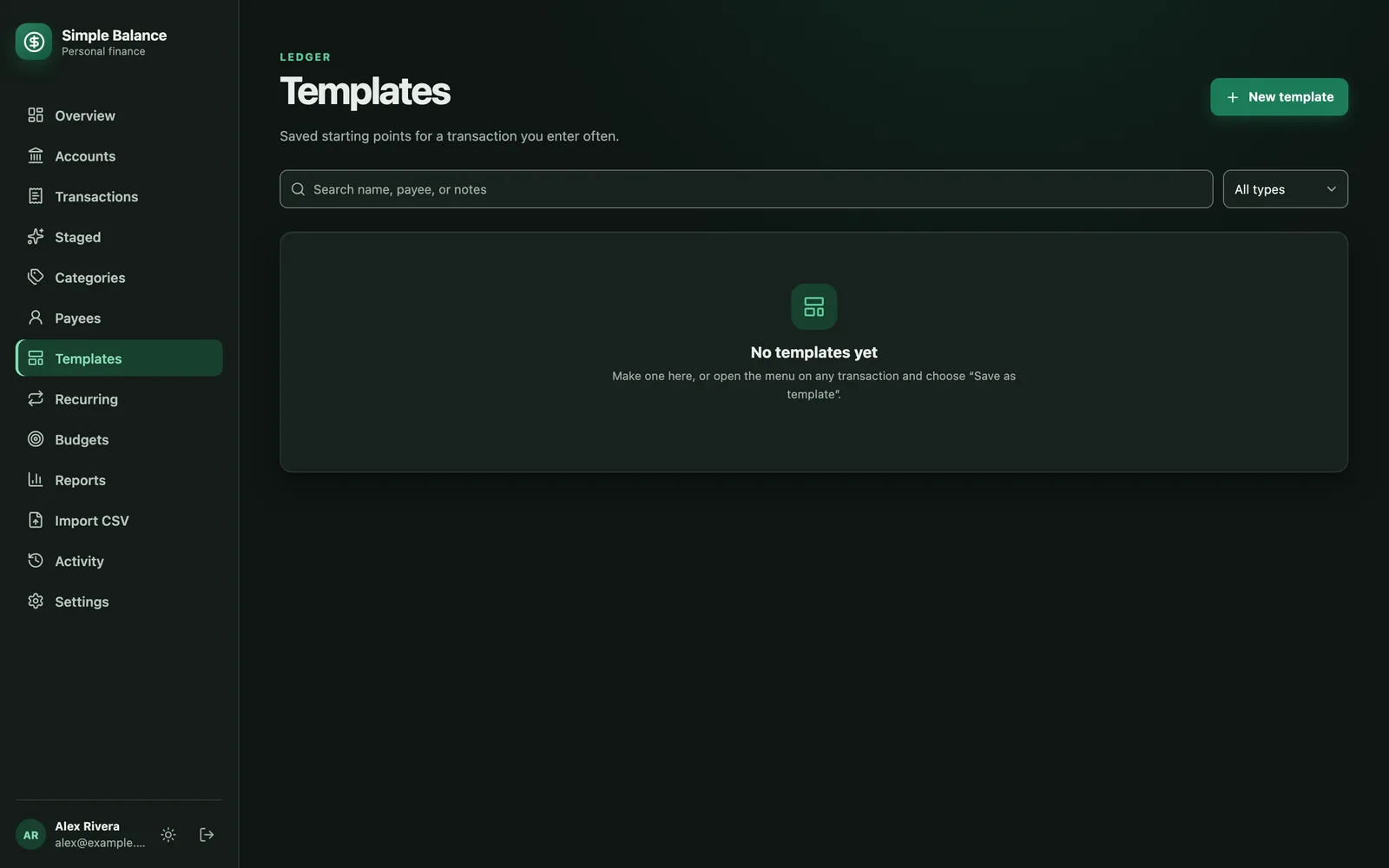
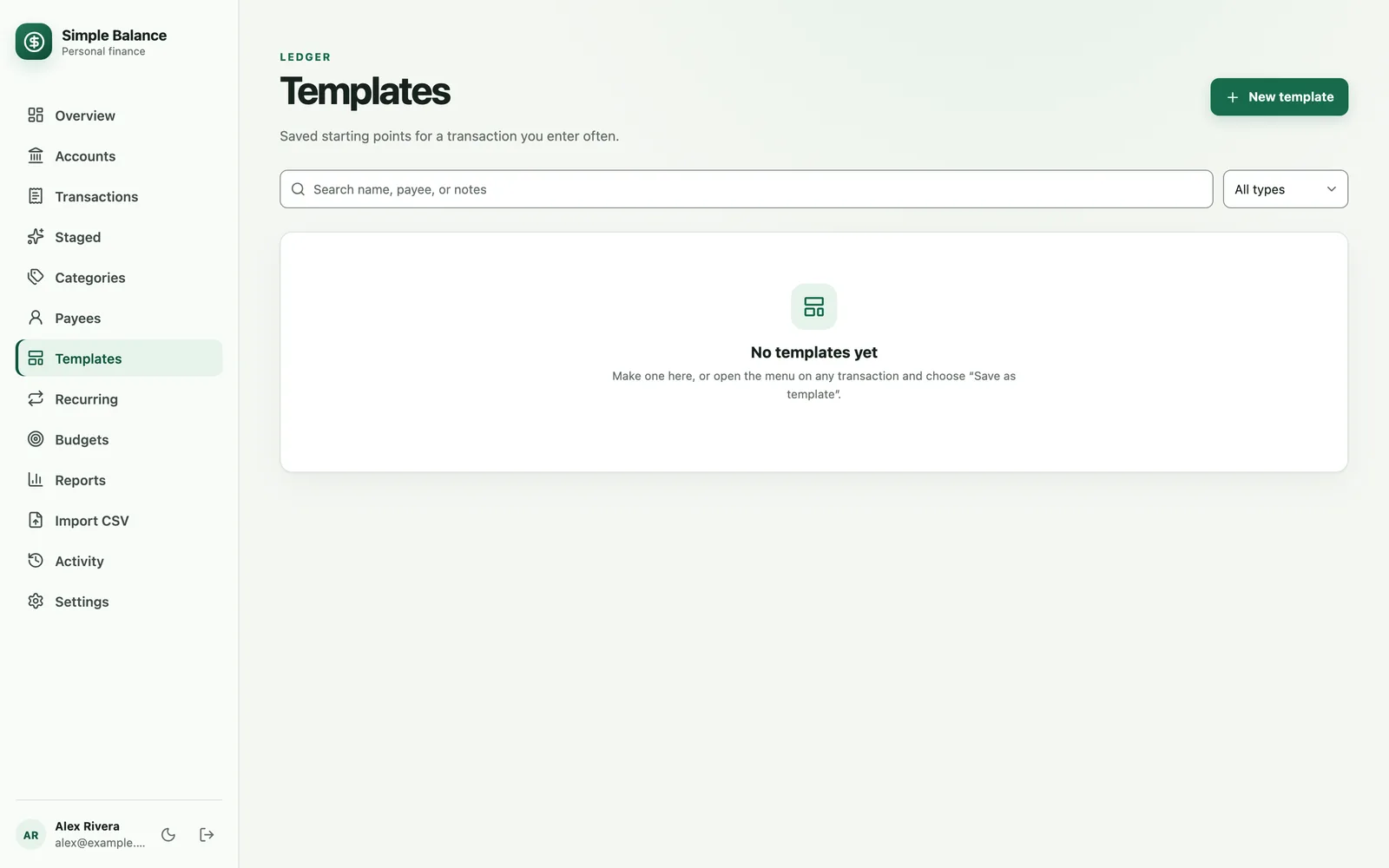
The money in this picture is made up. It’s the real product, filled with example spending.
Save a transaction as a template
The quickest way is to start from one you’ve already entered.
- Find the transaction on Transactions, on an account, category, payee or template page, or on Staged.
- Open its ⋯ menu and choose Save as template.
- Give it a Template name. Clear anything that changes from one time to the next, such as the amount.
- Press Save as template.
The template keeps the transaction’s type, payee, account or accounts, amount, category or split, description and notes. It leaves out three things:
- The date, so using the template fills in the day you use it.
- The bank’s own reference on an imported row, so a later import of the same statement isn’t mistaken for something you already have.
- The amount received on a transfer between two currencies.
Make a template from scratch
- Open Templates and press New template.
- Fill in Template name and any field you want filled in every time.
- Press Save as template.
Anything you leave blank isn’t saved, and you fill it in each time you use the template.
| Field | What it does |
|---|---|
| Template name | Required, up to 120 characters. It’s what you pick the template out by later, and it has to differ from your other templates’ names, ignoring capitals and spaces. A name you’ve already used gets “A template with this name already exists”. |
| Type | Withdrawal, Deposit or Transfer. A new template starts on Withdrawal. Press the chosen one again to leave the type out, and you pick it each time you use the template. |
| Payee | Leave blank to fill it in each time. |
| Date | Leave blank to use the day you use the template. A date here is filled in every time. |
| Account, or From account and To account | Pick one, or choose Leave blank. A transfer has both. |
| Amount | Leave blank when it’s different every time. |
| Amount received | Transfers only. For a transfer between accounts in different currencies, what arrives on the other side. Leave it blank when both accounts use one currency, or to fill it in each time. |
| Category | Optional. Split across categories divides it, up to 50 categories, and each part’s amount can be left blank. A name you don’t have as a category yet is saved as a name, matched when you use the template, and created then if nothing matches. A transfer has no category. |
| Description, Notes | Optional. |
| Reminder | An email asking you to make the transaction. See Email reminders. |
Save as template stays off until the template has a name.
Use a template
- Open the form for adding a transaction, for example with Add transaction on Overview or Transactions.
- In Start from a template, pick the template. It fills in the fields the template has and leaves the rest as they were.
- Fill in what’s still blank, check the rest, and save the transaction the way you always do.
A few things worth knowing:
- Start from a template only shows up once you have at least one template.
- Picking a different template undoes what the first one filled in before filling in its own. Picking No template undoes it without filling in anything.
- It works when you edit a transaction too. Fields the template doesn’t have keep the transaction’s own values.
- If the template names an account you’ve since archived or deleted, the form leaves that field for you and says so: “This template’s account is no longer available. Choose again before saving.” It does the same for a category that’s no longer there.
- Changing the transaction never changes the template. The form says so: “Anything you change here stays here; the template is not touched.”
- The transaction remembers which template it started from. That’s what the Used count on Templates counts.
Email reminders
A template can email you when it’s time to make the transaction: a bill you pay by hand, a card you top up every few weeks, the last day to cancel a free trial. The reminder only asks. It never records anything, because a template is something you fill in yourself.
Set up a reminder
- On Templates, open the template’s ⋯ menu and choose Edit. Or set one up while you make a new template.
- Under Reminder, check Email me to make this transaction.
- Choose Once or Repeatedly.
- For Once, set Send on to the day and Send at to the time.
- For Repeatedly, set Repeats, Every N months (or days, weeks or years), Starting and Send at, and the options below.
- Check the preview under the schedule. It reads Sends on for a one-time reminder and Next five for a repeating one.
- Press Save template, or Save as template for a new one.
Send on starts on today and Send at on 9:00 in the morning. Save a reminder later in the day without changing them and it goes out soon after you save.
Repeating reminders
| Option | What it does |
|---|---|
| Repeats | Daily, Weekly, Monthly or Yearly. |
| Every N months, or days, weeks or years | 1 to 366, where 1 means every one. Monthly every 3 is once a quarter. |
| Starting | The first date, and the one every later date is counted from. A weekly reminder repeats on this date’s day of the week. |
| Day of the month | Monthly and yearly only. On day N of the month uses the day of Starting. On a relative day asks for Which one to remind on (First, Second, Third, Fourth or Last) and Day to remind on. |
| When the month is too short | With On day N of the month, for a day some months don’t have, such as the 31st. Use the last day of that month or Skip that month. |
| When it lands on a weekend | Send it on the weekend, Skip it, Send it the Friday before or Send it the Monday after. A business day is Monday through Friday, and holidays aren’t counted. |
There’s no fifth Friday or fifth anything, because some months don’t have one. Use Last instead.
A daily reminder every 1 or 2 days can’t use Send it the Friday before or Send it the Monday after, because moving a date would put two reminders on one day. Make it every 3 days or more to use them.
The preview shows each date at its time. A date a weekend rule moved says “moved from” the date it would have been, and a date that’s skipped says “skipped”.
When the email arrives
- It’s sent at or soon after the time in Send at, on your own clock: the timezone in your preferences, not the server’s.
- It goes to your account’s email address.
- The subject is “Reminder:” and the template’s name. The email says which day it’s about, links to Templates, and says whether the reminder repeats. It has no button that records anything.
- If the first date and time have already passed when you save, one email goes out soon after.
- Saving the template again without touching the reminder keeps its place. Changing its date, time or schedule starts it over from its first date.
- If several dates pass before a reminder can go out, you get one email, not one for each. If an email can’t be delivered when it’s due, it isn’t sent again later.
Turn a reminder off
Edit the template, uncheck Email me to make this transaction, and press Save template. Deleting the template removes its reminder too.
The Templates list
Search templates looks through names, payees and notes, and the menu beside it shows only deposits, withdrawals or transfers. The list shows 25 templates a page.
| Column | What it shows |
|---|---|
| Name | The template’s name. |
| Type | Deposit, Withdrawal or Transfer. |
| Payee | The saved payee. |
| Account | The saved account, or both accounts of a transfer. |
| Category | The saved category. A split shows its first category and Split with how many. |
| Amount | The saved amount. |
| Used | How many transactions started from it, counting staged rows. When some are staged, it splits the count into committed and staged. Click the number to open the template’s own page. |
| Reminder | Once or Repeating, with the next date and time. A one-time reminder that’s gone says “sent”, and “none” means no reminder. |
A field the template leaves blank reads “blank”. Click a column heading to sort by it, and click again to reverse.
A repeating reminder whose rules skip every date it could land on says “never” in the Reminder column. A weekly reminder that starts on a Saturday and is set to Skip it on weekends is one. Change its options until the preview shows dates.
A template’s own page
Clicking the Used count opens a page for that template: every transaction started from it, staged ones included, over all time. Change the dates at the top to narrow it. Changing a transaction there doesn’t change the template. All templates takes you back.
Change or delete many templates at once
- Check the box beside each template, or the box in the heading row for the whole page. When more templates match than the page shows, Select all N matching picks every one that matches your search and filter.
- Press Edit selected. In Edit N templates, each field has three
choices:
- Leave alone keeps what each template has.
- Set to gives every selected template the value you enter.
- Clear so it is filled in on use empties it, so it’s asked for each time.
- Press Apply changes.
The fields are Type, Payee, From account, To account, Amount, Category, Description and Notes. Type can only be set, not cleared. The name isn’t offered, since every template needs its own. From account can’t be set while a deposit is selected, and To account can’t be set while a withdrawal is selected. Reminders aren’t part of a mass edit; change those one template at a time.
Clearing Amount across many templates is the quick way to make them ask for an amount each time.
To delete them instead, press Delete selected, then Delete templates in Delete N templates?. Transactions already made from them stay as they are.
Edit or delete one template
Open the template’s ⋯ menu on Templates:
- Edit opens Edit template, the same form you made it with. Press Save template when you’re done.
- Delete asks Delete this template?. Press Delete template to remove it and its reminder. Transactions already made from it stay as they are. A deleted template can’t be brought back.
Limits
- 200 templates. Making one more is refused with “You can keep 200 templates. Delete one you no longer use to make room.”
- A template name is up to 120 characters, and no two can match.
- A split names up to 50 categories.
- A repeating reminder runs every 1 to 366 days, weeks, months or years.
Limits lists every limit in one place. An AI assistant you’ve connected with Read, stage, and commit can make and change templates too: see Connecting an AI assistant. For the money side of using templates for cash spending, see Envelope budgeting.