Staged transactions and duplicates
Staged is the review queue. Imported, recurring and hand-staged rows wait there, count toward nothing, and post only when you commit them.
Staged is the review queue. Rows from a CSV import, a recurring transaction, a copy you cloned or an AI assistant wait there, and they don’t count toward any balance, budget or report until you commit them. You use it to check each row, fix what the importer couldn’t read, drop duplicates, and then commit.
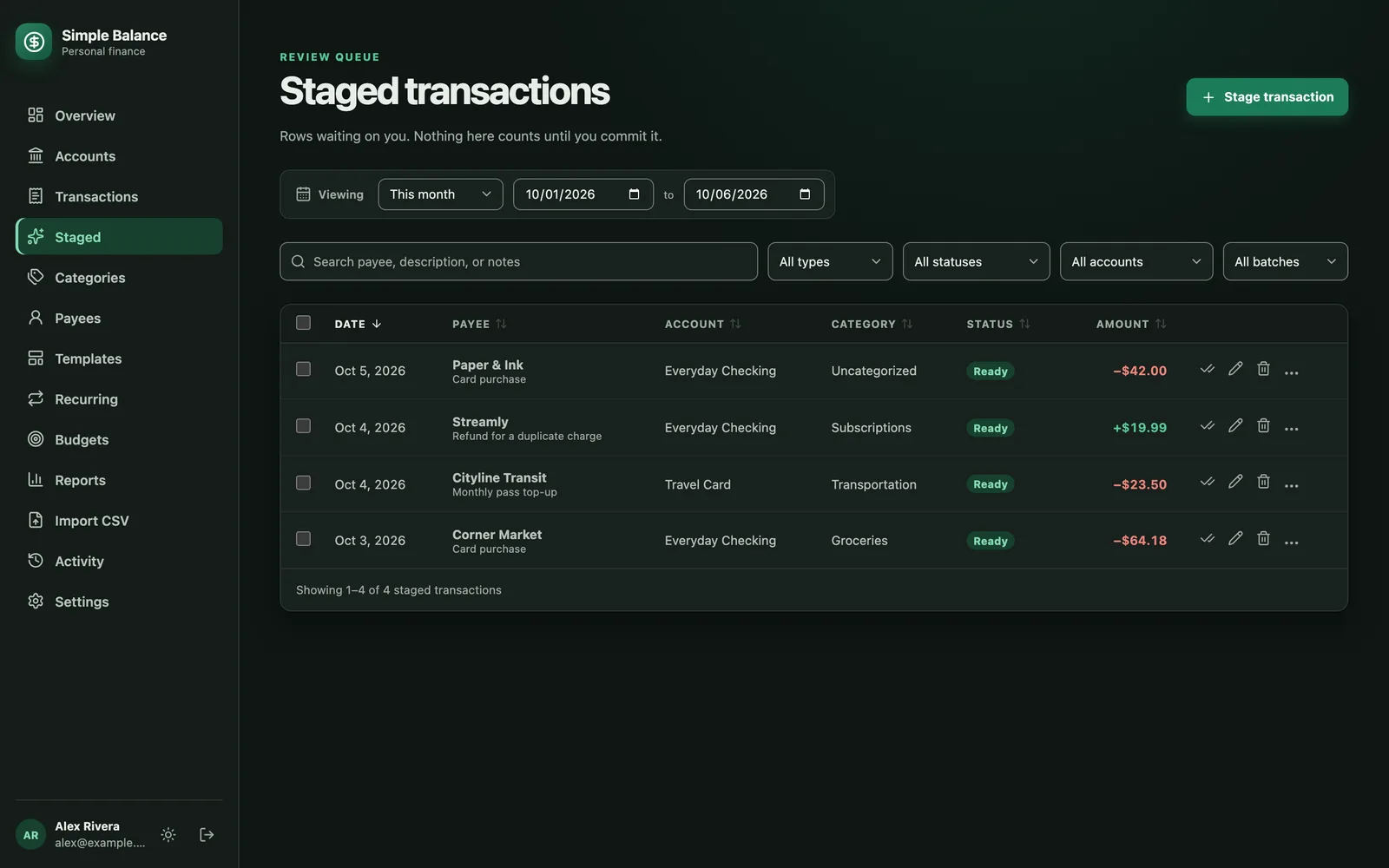
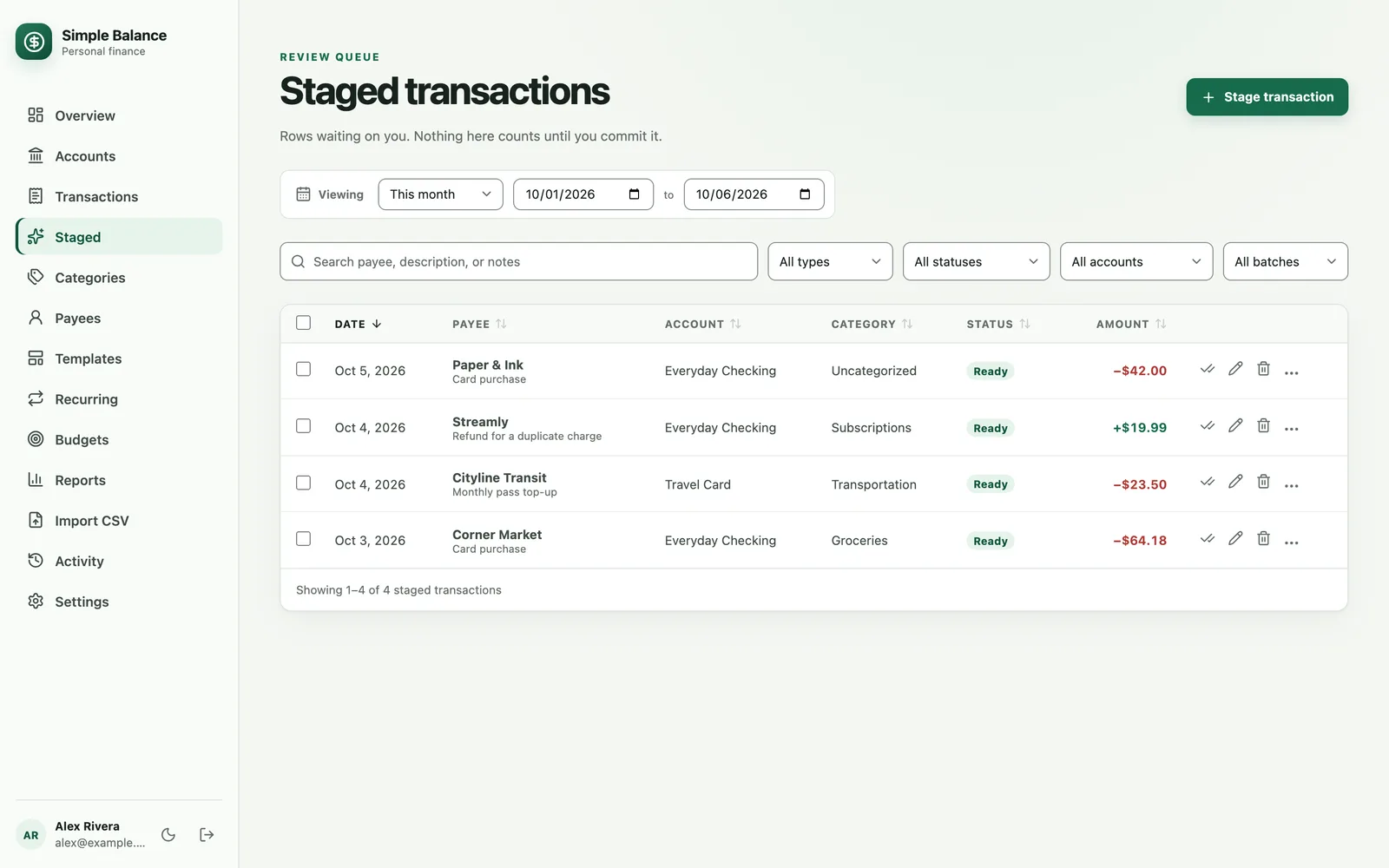
The money in this picture is made up. It’s the real product, filled with example spending.
What lands on Staged
- Every row from Import CSV. Importing a statement covers the importer.
- A transaction you add with Stage for review chosen under What should happen next?, or with Stage transaction on this screen.
- A copy made with Clone transaction from any row’s ⋯ menu. Its form starts on Stage for review.
- A recurring transaction’s proposal, on each date it’s due. Under the payee it says Proposed by and the recurring transaction’s name. Recurring transactions covers those.
- Rows an AI assistant prepares, if you’ve let it stage them. Connecting an AI assistant covers that.
A staged row changes nothing. It isn’t in a balance, a budget, a report or the Overview. Committing it is what turns it into a transaction.
Find the rows you want
The Viewing bar at the top sets the dates. Staged opens on the range you were already viewing on another screen, or on This month if you hadn’t picked one. Rows are filtered by their own date, so last month’s statement can look like it’s missing. Choose All time to see everything.
Under the dates are the filters:
- Search staged transactions looks in the payee, the description and the notes.
- The type filter: All types, Deposits, Withdrawals or Transfers.
- The status filter: All statuses, Ready to commit, Needs attention or Possible duplicate.
- The account filter: All accounts, or one account.
- The import filter: All batches, or one import. Each import is named by its file, when it arrived, and how many of its rows are still waiting, such as “checking.csv · Oct 6, 2026, 9:14 AM · 40 of 212 rows staged”. Only imports with rows still waiting are listed, and Load older batches shows more.
Two links open Staged already filtered. Review these N rows, at the end of an import, opens that import with All time chosen. The waiting count on Recurring opens the rows from one recurring transaction, and Showing one recurring transaction · show everything takes that filter off.
Click a column heading, Date, Payee, Account, Category, Status or Amount, to sort by it, and click it again to reverse. The newest rows come first to start with. Staged shows 100 rows a page.
Changing a filter or the dates clears anything you’d selected.
What each status means
| Status | What it means | What to do |
|---|---|---|
| Ready | The row is complete and doesn’t look like anything you have. | Commit it. |
| Needs attention | Something is missing or couldn’t be read. The first problem is shown under the badge. | Fix it, then commit. |
| Already recorded | It looks like a transaction you’ve already committed. | Click the badge to compare them. |
| Repeats another row | It looks like another row that’s still on Staged. | Click the badge to compare them. |
Some problems that put a row in Needs attention:
- “Date could not be parsed”, when the file’s date didn’t match the Date format you chose on the import screen.
- “Payee is required”, when the payee cell was empty.
- “Amount must be a number. Check the decimal and thousands separators.”
- “This recurring transaction does not set an amount. Fill one in before committing.”, for a recurring transaction you left the amount off on purpose, like an electric bill.
- An account that’s frozen, because the free plan keeps 3 accounts in use. Your account and plan explains frozen accounts.
A row that needs attention can’t be committed until it’s fixed. Each fix checks the row again, so once the problem is gone the badge turns to Ready.
How a possible duplicate is spotted
Already recorded compares the row with the transactions you’ve committed. It’s flagged when the account, the direction (money in or money out) and the amount are the same and the dates are within 3 days of each other. The payee and the category are ignored, because a bank names a shop its own way and often posts a purchase a day or two after you made it. A row with the same bank reference as a committed transaction is flagged too.
Repeats another row compares the row with the others still on Staged, and it’s stricter: the same bank reference if the rows have one, and otherwise the same date, payee, account, direction and amount. That’s what importing the same statement twice before committing it looks like.
A flag is a question, not an answer. Two $4.50 coffees on one card two days apart get flagged, and both are real.
Fix a row in place
Click a row’s date, payee, category or amount to edit it right in the list.
- Date and amount. Press Enter or click away to save, or press Escape to cancel. Emptying either one cancels the edit rather than clearing the field.
- Payee and category. Click away to save, or press Escape to cancel. Enter picks a suggestion from the list and doesn’t save.
- A new category. Typing a category name you haven’t used before creates that category when the row is committed.
- Splits and transfers. A split’s category and amount, and a transfer’s amounts, are edited with the pencil button instead. A transfer has no category.
Edit the whole row
The pencil button at the end of a row opens Edit staged transaction, the same form you use to add a transaction. Transactions goes through its fields. For a row that came from a file, the form ends with As it arrived: that row’s cells exactly as the file had them, so you can see what the importer was reading.
Press Save changes. The row stays on Staged and is checked again. Saving doesn’t commit it.
Commit one row
Press the check mark button at the end of the row. It’s committed right away, leaves Staged, and shows up on Transactions and in your balances.
If the row is a possible duplicate, you’re asked first: Commit this anyway? “This looks like a transaction you already have. Committing it will record a second one.” Press Commit anyway if both are real.
The check mark button is turned off while the row needs attention. Point at it to see why.
Commit, edit or delete many rows
- Check the box at the start of each row you want, or the box in the heading row to take the whole page.
- If more rows match than the page shows, press Select all N matching. That takes every row matching your dates and filters, up to 10,000.
- Choose what to do from the bar that appears: Commit selected, Edit selected, Delete selected or Clear selection.
Commit selected
Committing a selection is all or nothing: every selected row is committed, or none is.
- It’s turned off while any selected row needs attention, and says “Some selected rows have issues to fix first.”
- If any selected row is a possible duplicate, check Commit possible duplicates first. Until you do, it says “Some selected rows look like duplicates. Check the box to commit them anyway.” The box also appears if a commit is refused as a duplicate.
- For 50 rows or more, a bar counts the rows as they go. If the commit is refused partway, the message ends “Nothing was committed.”
- If your connection drops during a long commit, reload the page and look before you try again. The work keeps going on the server, so it may have finished.
Edit selected
Edit selected opens Edit selected staged rows. Turn on only the fields you want to change, then press Apply changes:
- Change date
- Change payee
- Change category, including Uncategorized (clear)
- Change account
- Change description
- Change notes
- Change type, between Deposit and Withdrawal
Nothing is committed. The rows are updated and checked again, so filling in a missing account or category clears their warnings. A message then says how many rows changed, how many are ready to commit and how many still need attention.
A few changes can’t be made to every selection:
- With a transfer selected, the account and the type can’t be changed.
- With a split selected, the category and the type can’t be changed.
- A row that doesn’t say whether money came in or went out needs Change type in the same edit before it can be given an account.
- Archived and frozen accounts aren’t offered.
The same kind of edit works on committed transactions. Changing many transactions at once covers that.
Delete selected
Delete selected asks Delete these staged rows? Press Delete staged rows to remove them. Nothing was committed, so no balance changes.
To delete one row, press the trash can button at the end of it, then Delete staged row.
More than 10,000 rows
One commit, edit or delete covers at most 10,000 rows. When more than that match, Staged says so. Commit or delete the first 10,000, then select the rest.
Review possible duplicates
When anything on Staged looks like a duplicate, a Review N possible duplicates button appears at the top of the screen. It counts the whole queue, whatever dates and filters you’re viewing.
- Press Review N possible duplicates to work through every pair, oldest first. Or click a row’s Already recorded or Repeats another row badge to open that row’s pair.
- The screen is called Two records of one payment. It shows the two records side by side, each marked Waiting in the queue for a staged row or Already recorded for a committed transaction. A committed transaction is always the second of the two.
- Decide what they are:
- The same payment. Press Delete this staged row on the copy that shouldn’t be there, then Delete staged row. The other record stays as it is. If you deleted the first of the two, you go on to the next pair. If you deleted the second, the screen says Nothing repeats this anymore.
- Two real payments, one of them wrong. Fix it in its own form and press Save changes. If they no longer look alike, the screen says Nothing repeats this anymore, with Next duplicate to go on, or Back to the queue after the last pair.
- Two real payments, both right. Press Back to the queue and commit the staged row there. It asks Commit this anyway? first.
- Previous and Next move between pairs, and the top of the screen says where you are, such as “Possible duplicate 2 of 7”. When there’s nothing left, it says No duplicates left to review.
Only a staged row can be deleted here. If the committed transaction is the spare, delete it from Transactions, then commit the staged row. Saving changes on the committed side changes that transaction in your books.
Stage a transaction by hand
- Press Stage transaction at the top of Staged. It’s turned off until you have an account.
- Fill in the Stage a transaction form. It’s the same form as adding a transaction, with Stage for review already chosen under What should happen next?
- Press Stage transaction.
To enter several in a row, check After saving/staging, return to create another before you press it. Check Reset after saving/staging as well to clear the form after each one.
Any form for adding a transaction can stage instead of committing: choose Stage for review before you save.
Clone a row, or save it as a template or a recurring transaction
Each row’s ⋯ menu has three more choices:
- Clone transaction opens Stage a transaction with this row’s details filled in, ready to stage as a new row. The copy leaves the bank reference behind, so the next import of that statement doesn’t mistake the copy for its own row.
- Save as template keeps this row as a starting point for the next one like it. Templates covers them.
- Save as recurring transaction puts the same entry on a schedule, which adds a row to Staged on each due date. Recurring transactions covers them.
Staged rows on other screens
A category’s, a payee’s or a template’s own page lists its staged rows above the committed ones, marked Staged, with a Review link back to this screen. They’re shown there for context and still count toward nothing.
How to track your spending walks through a first statement from your bank’s website to the rows you commit here, and sorts them into categories on the way.