Categories and payees
Add, group, rename, archive, delete and merge categories, and merge payee spellings, so your spending adds up under names you recognize.
A category says what money was for, like groceries or rent. A payee says who it went to or came from, like the store or your employer. Simple Balance adds up your spending by category on the overview, the budgets and the reports, and you can see everything with one payee on that payee’s own page.
You manage them under Categories and Payees in the sidebar. Both screens count how many transactions use each name and flag names that look like duplicates so you can merge them.
Add a category
- Open Categories.
- Type a Category name, up to 120 characters.
- Choose what it Applies to: Expense, Income or Income or expense.
- Pick a Category group if you want one, or leave it on No group.
- Press Add category.
Two categories can’t share a name, and capital letters and extra spaces don’t count as a difference. Adding one that matches a name you already have is refused with “A category with this name already exists”, and that includes categories you’ve archived. To get an archived one back, restore it instead.
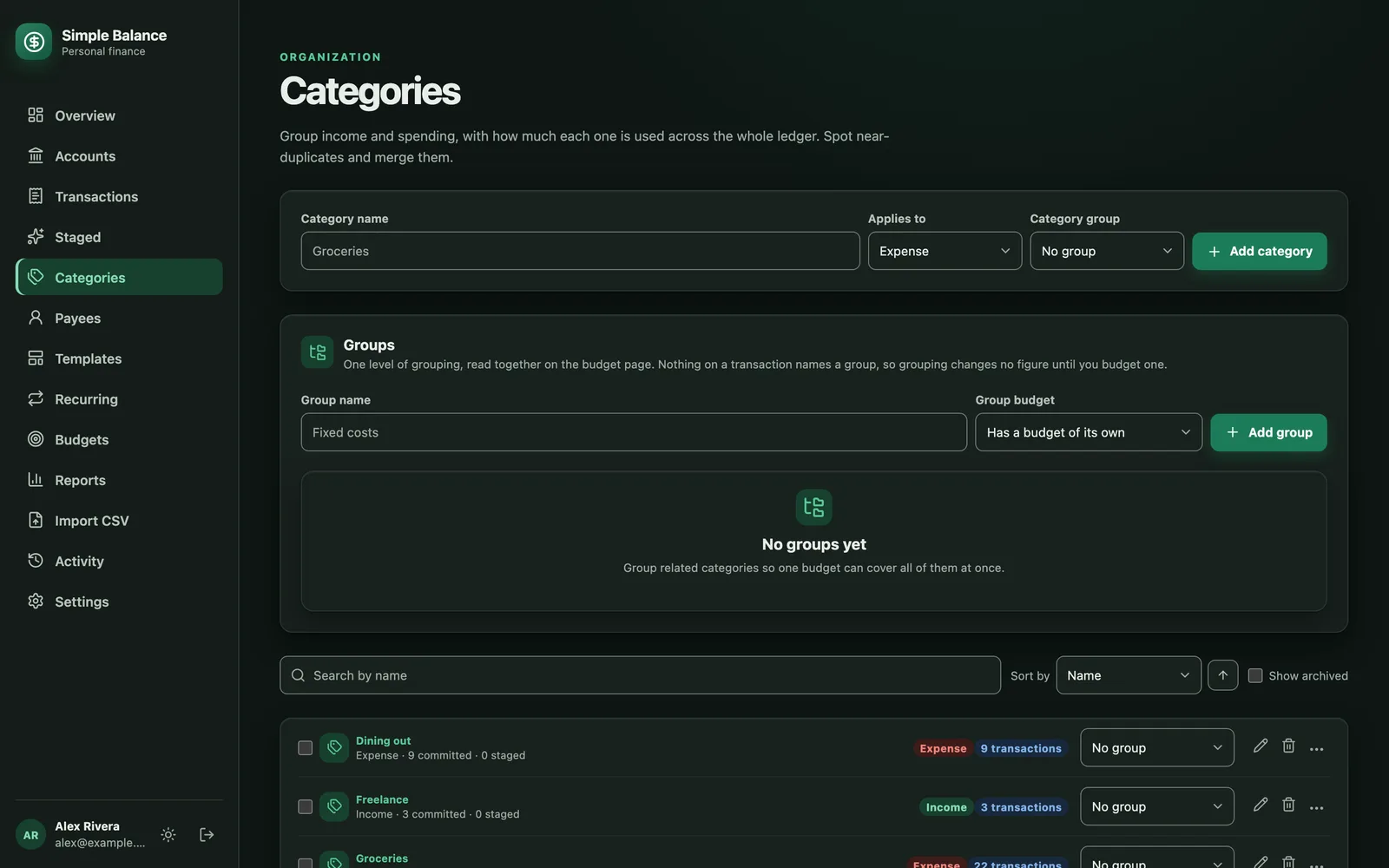
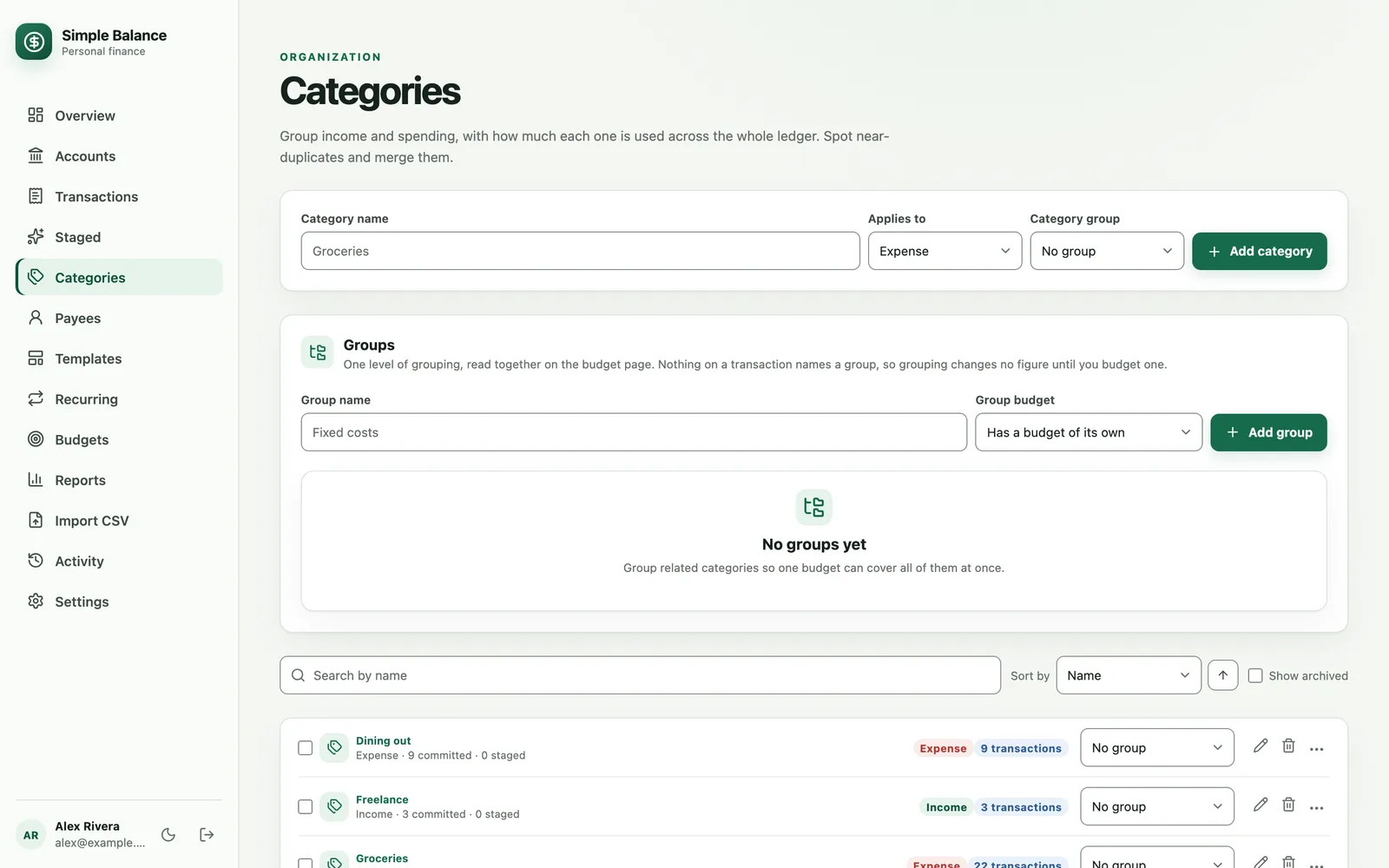
The money in this picture is made up. It’s the real product, filled with example spending.
Choose what it applies to
Applies to decides how a transaction filed under the category is counted.
| Applies to | Use it for | What runs against it |
|---|---|---|
| Expense | Spending, like groceries or rent | A deposit under it is a refund. It lowers that spending instead of counting as income. |
| Income | Money coming in, like your pay | A withdrawal under it is money paid back. It lowers that income instead of counting as spending. |
| Income or expense | A category you use both ways | Nothing. It goes along with whichever direction the transaction has. |
Pick Expense or Income when you can. A category on Income or expense never turns a deposit into a refund, so money a store gives back would count as income rather than lowering what you spent there. How deposits, withdrawals and transfers work explains refunds in more detail.
Every category you haven’t archived is offered on every transaction, whatever it applies to. That’s what lets you file a refund under a spending category.
Categories you name on a transaction
You don’t have to add categories here first. Type a name you haven’t used in a transaction’s category box and the form says it’ll add it as a new category when you save. It also asks what kind it is: Money you spent or Paying back money you earned on a withdrawal, and Money you earned or A refund of money you spent on a deposit.
A name that matches one you already have, apart from capitals and spacing, uses the existing category. A name that matches an archived category brings it back out of the archive. An import works the same way, and Importing a statement has the details.
Find a category
Each row on Categories shows the name, what it applies to, and how many transactions use it, as “12 committed · 2 staged”. Committed transactions count in your balances. Staged ones are waiting on Staged for you to review. The counts cover all your history, not just the dates you’re viewing, and they leave out transactions you’ve deleted.
- Search categories narrows the list by name.
- Sort by orders it by Name, Kind, Status, Committed, Staged or Total transactions. The arrow beside it reverses the order.
- Show archived adds the categories you’ve archived, marked Archived.
Click a category’s name to open its own page.
Rename a category or change what it applies to
- Press the pencil on the category’s row.
- In Edit category, change its Name, what it Applies to, or its Group.
- Press Save category.
Renaming keeps every transaction filed under it, and its budgets, templates and recurring transactions follow the new name.
Changing Applies to can be refused. Switching to Expense is refused while any deposit is filed under the category, and switching to Income is refused while any withdrawal is, staged rows included. The message reads “This category’s applicability conflicts with transactions that use it. Use Both or recategorize them first.” “Both” there means Income or expense. Either leave it on that, or move those transactions to another category first.
Group categories
A group gathers related categories, like rent, power and internet under “Fixed costs”, so you can budget them together. Groups only matter on the budget page. Nothing on a transaction names a group, so grouping changes no figure until you set a budget on one.
There’s one level of grouping. A group holds categories, never other groups, and a category belongs to one group at most.
Add a group
- On Categories, find the Groups panel.
- Type a Group name, up to 80 characters. Two groups can’t share a name, apart from capitals and spacing.
- Choose its Group budget:
- Has a budget of its own: you set one budget on the group itself.
- Adds up its categories’ budgets: the group’s budget is the total of the budgets on its categories, and the group can’t hold one of its own.
- Press Add group.
Budgets covers setting a budget on a group.
Put a category in a group
Use the group menu on the category’s row, which reads No group until you choose one. You can also pick a Category group when you add a category, or change Group in Edit category. Choose No group to take it out.
Moving a category into a group changes what that group spent in past periods too. A group is a way of reading its categories together, not a record of where they used to be.
Rename, change or delete a group
The groups table lists each Group, how it’s Budgeted as, and how many Categories it holds.
- Rename a group by clicking its name and typing. Press Enter or click away to save, or press Escape to put the old name back.
- Change how it’s budgeted with the menu in Budgeted as. Switching a group to Adds up its categories’ budgets is refused while it has a budget of its own: delete that budget on Budgets first.
- Delete a group with the trash can on its row, then press Delete group under Delete this group? Its categories stay exactly as they are, in no group. A budget set on the group itself is deleted with it.
Archive or restore a category
Archiving puts a category you no longer use out of the way. It disappears from every category box and from the list, and every transaction filed under it keeps it.
- Press ⋯ on the category’s row.
- Choose Archive followed by the category’s name.
Archiving is refused while staged rows use the category: “Resolve staged transactions that reference this category before archiving it.” Commit those rows, give them another category, or delete them, and try again.
To bring one back, turn on Show archived, press ⋯ on its row, and choose Restore followed by its name. Typing its name on a transaction or in an import restores it too.
Delete a category
You can delete a category only while nothing uses it. To put one away that does have transactions, archive it instead.
- Press the trash can on the category’s row.
- Under Delete this category?, press Delete category.
The delete is refused with “This category is in use. Archive it instead of deleting it.” when any of these still names it:
- a transaction, including one you’ve deleted, because a deleted transaction can still be restored;
- a staged row;
- a template;
- a recurring transaction.
For a category you’ve already archived, the message says it’s still in use and that it’s archived already, which keeps it out of every category box.
The counts on the row leave out deleted transactions, templates and recurring transactions, so a category can read “0 committed · 0 staged” and still refuse to go. Archive it instead.
A budget doesn’t stop a delete. The budget on that category is deleted with it. A delete can’t be undone.
Categories removed for you
When you change a transaction’s category, or a staged row’s, and nothing else uses the old one, the old category is deleted for you. That’s true whether you change one at a time or many with Edit selected. It’s kept if any transaction, staged row, template, recurring transaction or budget still names it.
A category you made ahead of time and haven’t used yet is left alone, because nothing moved off it.
Merge categories
Merging folds several categories into one. Everything filed under the others moves to the one you keep, and the others are deleted. It’s how you tidy up “Groceries”, “Grocery” and “Food shopping” into one.
- On Categories, check the box at the start of each category you want to merge, two or more.
- A panel appears, headed Merge 3 selected categories (or however many you checked). Pick the one to keep from the menu that reads Choose category to keep.
- Press Merge.
- Under Merge these categories?, press Merge categories.
The page then says how many categories were folded in and how many committed and staged transactions now name the one you kept. One merge folds up to 100 categories into the one you keep.
Possible duplicates
When two categories have the same name apart from capitals or extra spaces, a Possible duplicates panel lists them. Press Review merge beside a set and it checks all of them, turns on Show archived, and picks one that isn’t archived to keep. Then carry out steps 3 and 4 above, or pick a different one to keep first.
Only differences in capitals and spacing are flagged. Two names spelled differently, like “Groceries” and “Grocery”, are never listed, so check those yourself.
What a merge moves
- Committed transactions, including one category’s share of a split.
- Staged rows.
- Templates and recurring transactions.
- Budgets, both standing ones and amounts set for a single period.
The category you keep keeps its own name. If the categories you merged didn’t all apply to the same thing, the one you keep becomes Income or expense. To keep refunds lowering your spending, merge categories that have the same Applies to.
When a merge is refused
A merge happens completely or not at all. It’s refused when:
- Both categories have budgets covering the same periods: “Both categories are budgeted over the same periods, so merging them would leave two budgets for one period. End or delete one of the budgets first, then merge.”
- Both have an amount set for the same single period: “Both categories have an amount set for the same period, so merging them would leave two. Remove one of them first, then merge.”
- It would change a transaction in a frozen account. On the free plan, accounts past the 3 in use are frozen, and nothing in them can change. Your account and plan explains freezing.
A category’s page
Click a category anywhere you see one: its name on Categories, the category on a transaction in any list, a row in the overview’s spending panel, or a row on Budgets. Its page shows:
- All categories, to go back to the list.
- The category’s name, what it applies to, and Archived if it’s archived.
- The date range bar, labeled Viewing.
- In this range, the total filed under the category between the two dates, and All time, the total ever filed under it. A category used in more than one currency gets a pair for each. If nothing has been filed under it yet, the totals don’t show.
- Its transactions, with any staged rows at the top, marked Staged, with a Review link to Staged.
On a split transaction, the list shows only this category’s share, so the rows add up to the totals. Like Reports, the totals stop at today and leave out accounts you’ve archived.
Export CSV saves what the list shows. Add transaction starts a new one with this category filled in, as a deposit for an Income category and as a withdrawal otherwise. An archived category’s page has no Add transaction.
Payees
A payee is the name on a transaction: the store, the person, the employer. You don’t add or delete payees. One shows up on Payees as soon as a committed or staged transaction uses it.

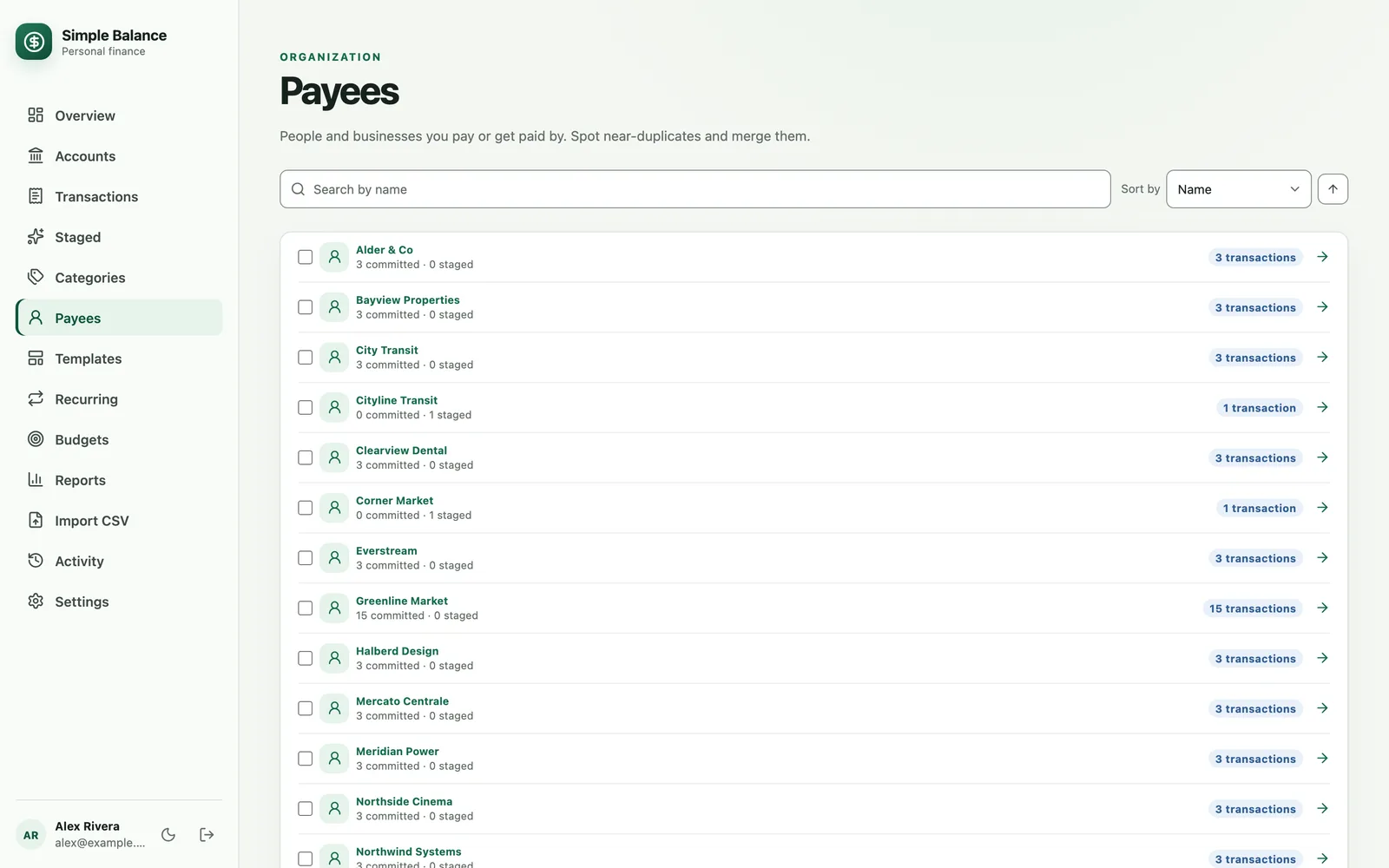
The money in this picture is made up. It’s the real product, filled with example spending.
Each row shows the name, “15 committed · 0 staged” or similar, and the total number of transactions. Like the category counts, these cover all your history and leave out deleted transactions.
- Search payees narrows the list by name.
- Sort by orders it by Name, Committed, Staged or Total transactions.
How payee names are matched
The payee box on a transaction suggests names you’ve used as you type. If you type a name that matches one you have apart from capitals and spacing, it’s saved with the spelling you already use most. So typing “greenline market” files the transaction under “Greenline Market”.
That doesn’t catch a different spelling. “City Transit” and “Cityline Transit” are two payees until you merge them.
Merge or rename a payee
Merging is how you tidy payee names. Every transaction that names one of the others is rewritten to the name you keep.
- On Payees, check the box at the start of each name, two or more.
- A panel appears, headed Merge 2 selected payees (or however many you checked). Pick the name to keep from the menu that reads Choose payee to keep.
- Press Merge.
- Under Merge these payees?, press Merge payees.
The rewrite covers committed transactions, staged rows, templates and recurring transactions. The page then says how many spellings were folded in and how many transactions now use the name you kept. One merge folds up to 100 names into the one you keep.
A merge is recorded in your activity history, but it can’t be undone in one step. Like a category merge, it’s refused whole if it would change a transaction in a frozen account.
When names differ only by capitals or spacing, a Possible duplicates panel lists them. Review merge checks the set and picks the spelling used most to keep.
Give a payee a name you haven’t used
The name you keep in a merge has to be one of the names you checked. To change a payee to a new name, change its transactions instead:
- Open the payee’s page and set the dates to All time.
- Check the box at the top of the list to select the page. If there’s more than one page, press Select all 40 matching (the number is however many match).
- Press Edit selected, check Change payee, and type the new name.
- Press Apply changes.
That changes committed transactions only. Staged rows, templates and recurring transactions keep the old name. If staged rows still use it, the old name stays on Payees, and merging it into the new one there updates all of them. Otherwise, edit those templates and recurring transactions by hand. Changing many transactions at once covers Edit selected in full.
A payee’s page
Click a payee’s name on Payees, or on a transaction in any list. Its page has All payees to go back, the date range bar, and every transaction with that payee, whatever its capitals or spacing, with staged rows at the top.
Export CSV saves what the list shows, and Add transaction starts a new one with the payee filled in. The find your subscriptions guide uses this page to spot charges that repeat.
For help choosing your categories in the first place, see a list of budget categories, with examples.